

Saving Products to Wishlists
Your wishlist is a shortlist of products you're considering. Save anything with one click, compare later, and let AppTrovo tell you when a saved product gets cheaper.
Save a product
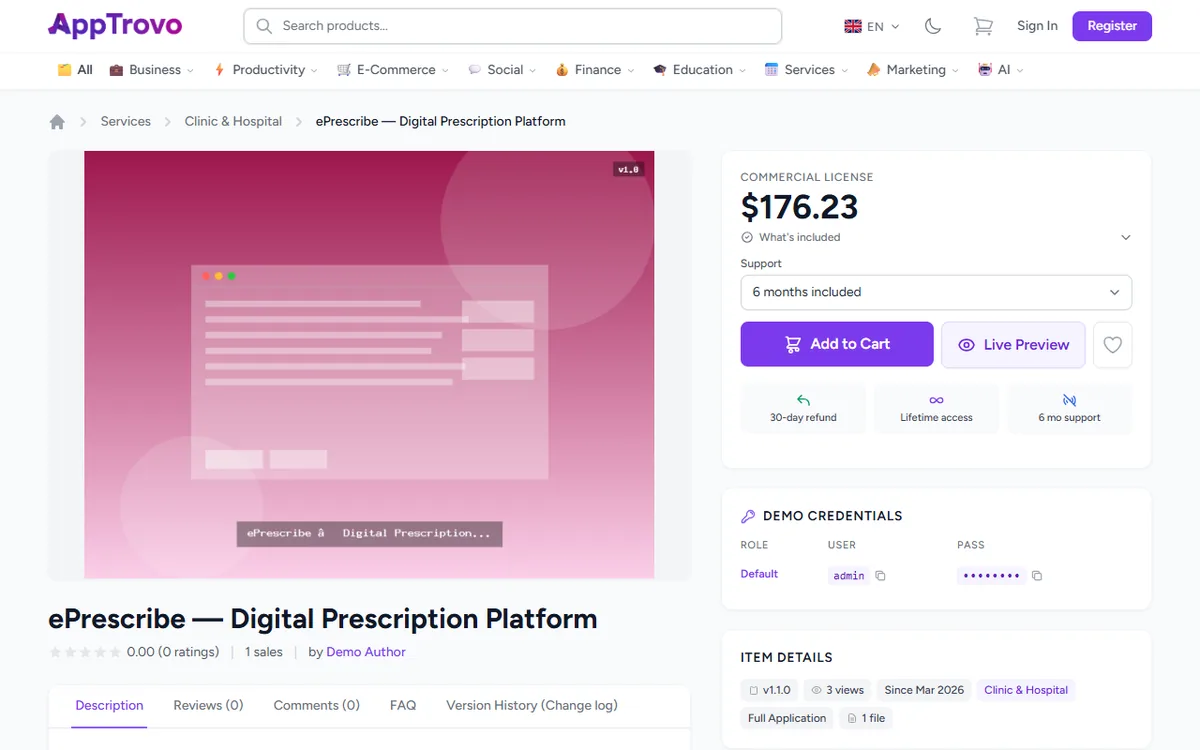
Look for the heart icon. It appears:
- On the product page, to the right of Add to Cart and Live Preview.
- On product cards in grid view and in the home page sections (Featured Products, New Arrivals, Best Sellers and so on).
Click the heart to save the product; it fills in to show it's saved. Click it again to remove the product. You need to be signed in — if you aren't, the heart takes you to the sign-in page.
The detailed rows in list view, the default layout on search and category pages, don't have a heart. Switch to grid view with the layout buttons next to the sort menu, or open the product page.
The first product you save creates a list called My Wishlist automatically; there's nothing to set up.
View your saved products
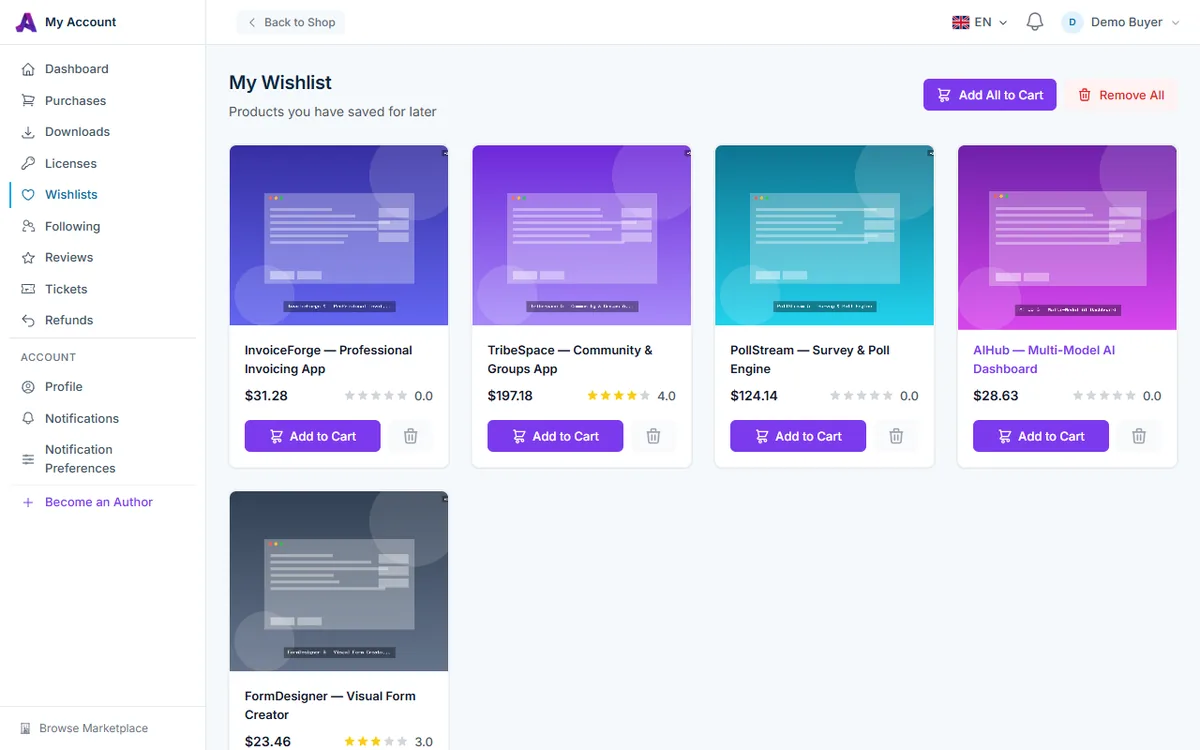
In your account, click Wishlists in the sidebar, or My Wishlist under Quick Actions on your dashboard. You can also go to /account/wishlists.
The My Wishlist page shows every product you've saved, most recent first. Each card has the product image, name, current price and star rating, plus:
- Add to Cart — adds the product to your cart.
- The trash icon (Remove from wishlist) — removes just that product.
Click a product's image or name to open its page, where you can pick an edition and a support period before adding it to your cart.
Move everything to your cart
Ready to buy? Click Add All to Cart at the top of the page. Each saved product is added with its default edition. Products that are already in your cart or are no longer available are skipped, and a message tells you how many were added and how many were skipped. Your wishlist isn't emptied, so remove items yourself once you've bought them.
If you want a different edition (for example the free Community edition instead of the Commercial License) or extra months of support, add that product from its product page instead.
Clear your wishlist
To start over, click Remove All and confirm. This removes every saved product and can't be undone.
Price drop and availability alerts
AppTrovo keeps an eye on your saved products, so you don't have to keep checking them. You'll be notified when:
- The price drops — including when the product goes on sale. The alert shows the old and new price.
- A product is available again — if a saved product was taken off the marketplace and later comes back.
Alerts arrive by email and in your in-app notifications. Price drop alerts follow the Price Drop Alerts setting under Marketing in Notification Preferences, where you can turn the email or the in-app notification off.
Frequently asked questions
Is my wishlist private?
Yes. Only you can see your wishlist, and authors aren't told who saved their products.
Does saving a product reserve the current price?
No. You pay the price shown at checkout. If the price has dropped since you saved it, you'll have received an alert.
I bought a product — is it removed from my wishlist?
No. Buying doesn't remove the item, so use the trash icon or Remove All when you're done.
What happens if I click a heart while signed out?
You are taken to the sign-in page. After you sign in from a heart on a product card, you return to that product's page, where a filled heart shows that a product is already saved.
Related articles
Was this article helpful?