

Evaluating a Product Before You Buy
Every product page on AppTrovo is built to answer one question: is this the right app for you? Here's how to use each part of the page to decide before you spend anything.
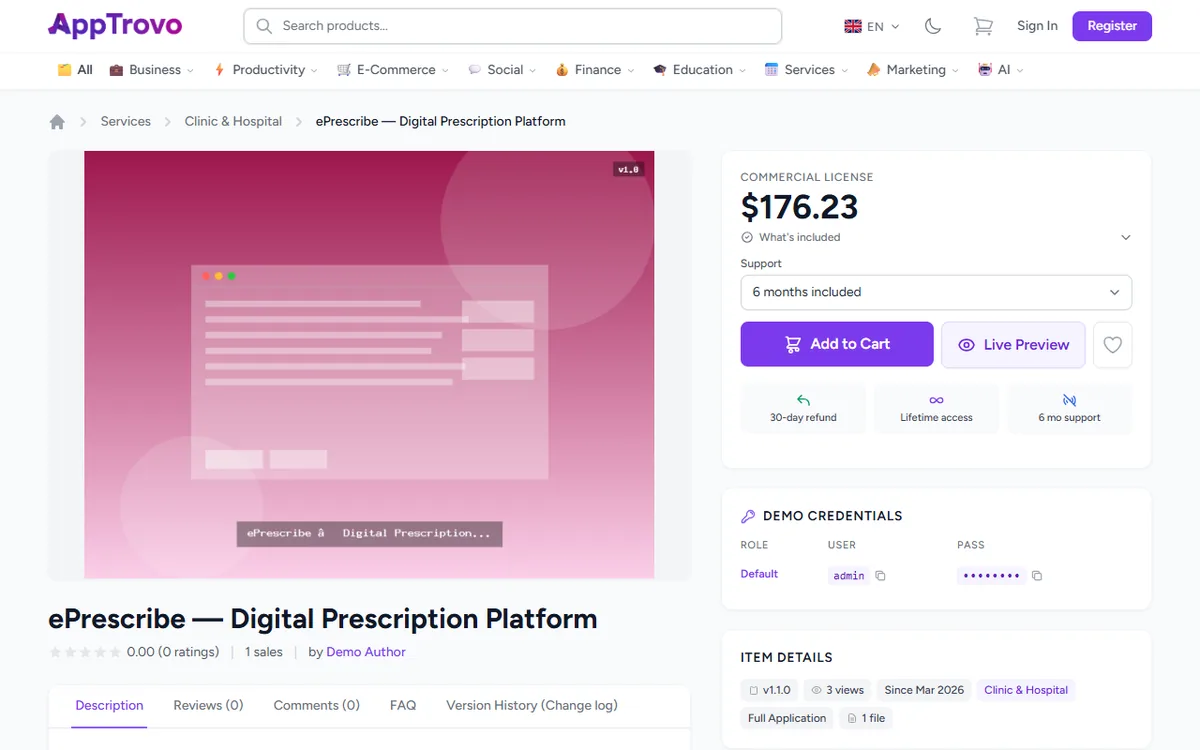
1. Try the live demo
If the author provides a demo, a Live Preview button sits next to Add to Cart. It opens the demo inside an AppTrovo preview window, where you can switch between Desktop, Tablet and Mobile widths. Some demo sites can't be embedded; in that case click Open Demo in New Tab.
When the demo needs a login, the Demo Credentials box on the product page lists each role with its user name and password. Use the copy icons to paste them into the demo. The same logins are available under Credentials in the preview window.
2. Look at the screenshots and description
Click the main image to open the gallery and step through screenshots with the arrows. The Description tab is the author's full write-up: features, installation notes and what you need to run the app. AppTrovo doesn't have a separate requirements field, so check the description and the Tech Stack panel for the language, framework, database and deployment target.
3. Pick the right edition
Many products are sold as a single Commercial License, shown as a label above the price. Some also offer a free Community edition; those products show a selector with Community and Commercial above the price.
- Community — free and feature-limited. You may use it in production, but it doesn't include author support.
- Commercial License — the paid edition with the full feature set, product updates and author support for the period shown.
Click What's included under the price to see exactly what the selected edition grants: how many domains you can activate, product updates, the months of author support, the license usage terms and any edition-specific features the author lists. Read full license terms opens the complete license for that product. A free edition's button reads Download for Free instead of Add to Cart.
4. Check support and guarantees
For paid editions with author support, the Support menu shows the months included and lets you add 6 or 12 more months at checkout for the price shown. The strip under the buttons summarizes the refund window, Lifetime access, and the support period when the selected edition includes support. If the product is part of a bundle, a box below offers the bundle as a cheaper way to buy it.
5. Read reviews and comments
The Reviews tab shows the rating breakdown and every review. Sort by Newest, Oldest, Most Helpful, Highest Rated or Lowest Rated, filter by star rating, or tick Verified Only to see reviews marked Verified Purchase. Only buyers who completed a purchase can leave a review.
The Comments tab is where buyers and visitors ask the author questions in public. Read the existing answers — your question may already be covered — or sign in and post your own with Post Comment. Replies from the author carry an Author label. Filter the list with All, Replied or Unreplied to see how responsive the author is.
Products in beta work differently: they show a Beta Feedback tab instead of Reviews and Comments.
6. Check how actively it's maintained
- Version History (Change log) lists each released version with its notes. Use the RSS link to follow new releases in a feed reader.
- Item Details shows the current version, when the product was last updated, how long it has been listed (Since), its category and type, and how many files the download contains.
- The FAQ tab answers the author's most common pre-sale questions.
7. Get to know the author
The author card shows a Verified Author badge where applicable, plus the author's rating, total sales and number of products, and a Portfolio link if they've added one. Click the author's name to see their profile and their other products, or click Follow to be notified when they publish something new.
8. Compare alternatives
Scroll to the bottom of the page for Related Products and Customers Also Bought. If you aren't ready to decide, click the heart icon to save the product to your wishlist and come back later.
Frequently asked questions
Can I ask the author something privately before buying?
Before purchase, use the public Comments tab. After you buy, you can open a private support ticket from your account.
Why can't I leave a review?
Reviews are limited to buyers with a completed purchase of the product, one review per product. Community edition users and beta testers share feedback through the Feedback or Beta Feedback tab instead.
Related articles
Was this article helpful?