

Following Authors and New Releases
When an author's work impresses you, follow them. You'll get an in-app notification whenever they publish a new product, and your account keeps a list of everyone you follow with their latest releases.
How to follow an author
You can follow from two places:
- The author's profile. Click the author's name on a product page or in a product listing to open their public profile at
/authors/{username}, then click Follow next to their follower count. - A product page. Scroll to the author card in the right-hand column and click Follow.
The button changes to Following straight away. On the author's profile, the follower count updates too. You need to be signed in; if you aren't, clicking Follow takes you to the sign-in page first. You can't follow your own author account, so the button doesn't appear on your own profile or products.
What you get when you follow
New release notifications
When an author you follow publishes a new product — that is, once it passes review and goes live on the marketplace — you get a notification naming the author and the new product. It appears under the bell icon at the top of your account and on your Notifications page.
A few things to know:
- These alerts are in-app only. AppTrovo doesn't email you about followed authors, so a popular author's launch won't flood your inbox.
- You're notified about brand-new products, not every version update. Updates to products you've bought are announced separately, whether or not you follow the author.
- Because they're in-app only, these alerts aren't affected by your email settings in Notification Preferences.
A feed of your favorite authors
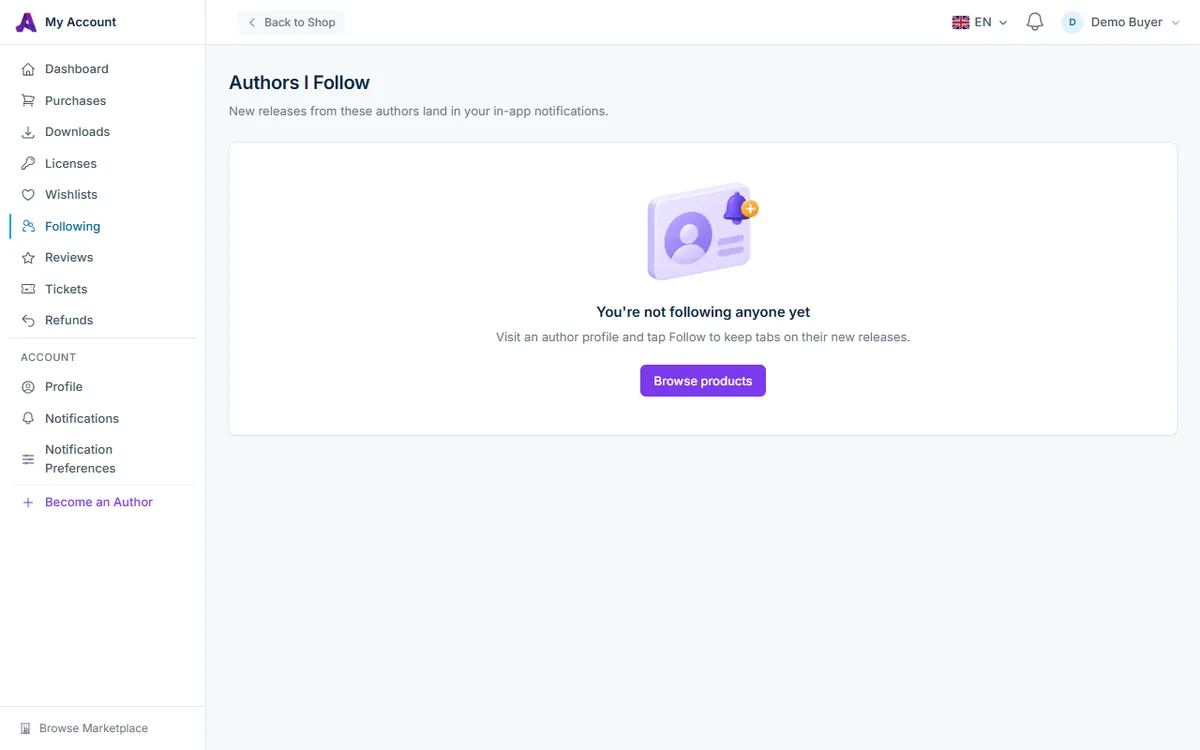
In your account, open Following (or go to /account/following). The Authors I Follow page lists everyone you follow, most recently followed first. Each entry shows:
- The author's name and tagline — click either to open their profile.
- How many published products they have.
- Latest releases — their three most recent products, linked to the product pages.
- An Unfollow button.
If you follow a lot of authors, the list is split into pages.
Unfollowing an author
- Open Following in your account.
- Find the author and click Unfollow.
You can also click Following on the author's profile or on one of their product pages; the button switches back to Follow. You stop receiving new-release alerts from that author right away. Notifications you've already received stay in your notification list until you delete them.
Tips for getting the most out of following
- Follow the authors you've bought from. If an app worked well for you, the same author's next product is likely worth a look.
- Check the author profile first. It shows their products, sales, rating, reviews and join date, along with an About section, so you can judge their track record before following.
- Combine following with your wishlist. Follow the author, then save the products you're considering to your wishlist to get price drop alerts on them.
- Subscribe to a changelog. To track updates to one specific product, use the RSS link on its Version History (Change log) tab.
Frequently asked questions
Can authors see who follows them?
An author's follower count is shown on their public profile, but the list of who follows them isn't published. Your Following page is visible only to you.
I followed an author but haven't had any notifications
You're only notified when the author publishes a new product after you followed them. Products they released earlier are listed under Latest releases on your Following page instead.
Can I get these alerts by email?
Not at the moment — new-release alerts for followed authors are in-app only. Check the bell icon or your Notifications page.
Related articles
Was this article helpful?