

API Tokens and the Sandbox License
Authors get two tools for building license checks into a product: API tokens, which authenticate requests to the AppTrovo API as your account, and free developer test licenses, which let you run the whole license verification flow on your own machine before any buyer has a key.
API tokens
When you need a token
The license verify endpoint (/api/v1/licenses/verify) is public. Your product does not need a token to check a buyer's key. Tokens are for the authenticated parts of the API, such as listing the licenses your account owns (/api/v1/licenses) or reading your own author data under /api/v2/author/.
A token acts as your account. Never put a token in a product you sell, a public repository or client-side code. Anyone who has it can make API calls as you.
Create a token
- Go to /author/api-tokens while signed in to your author account.
- Under Create New Token, enter a Token Name that says where the token will be used, for example "Build server".
- Click Create Token.
- Copy the token from the green box right away. It won't be shown again. Click Dismiss when you have stored it safely.
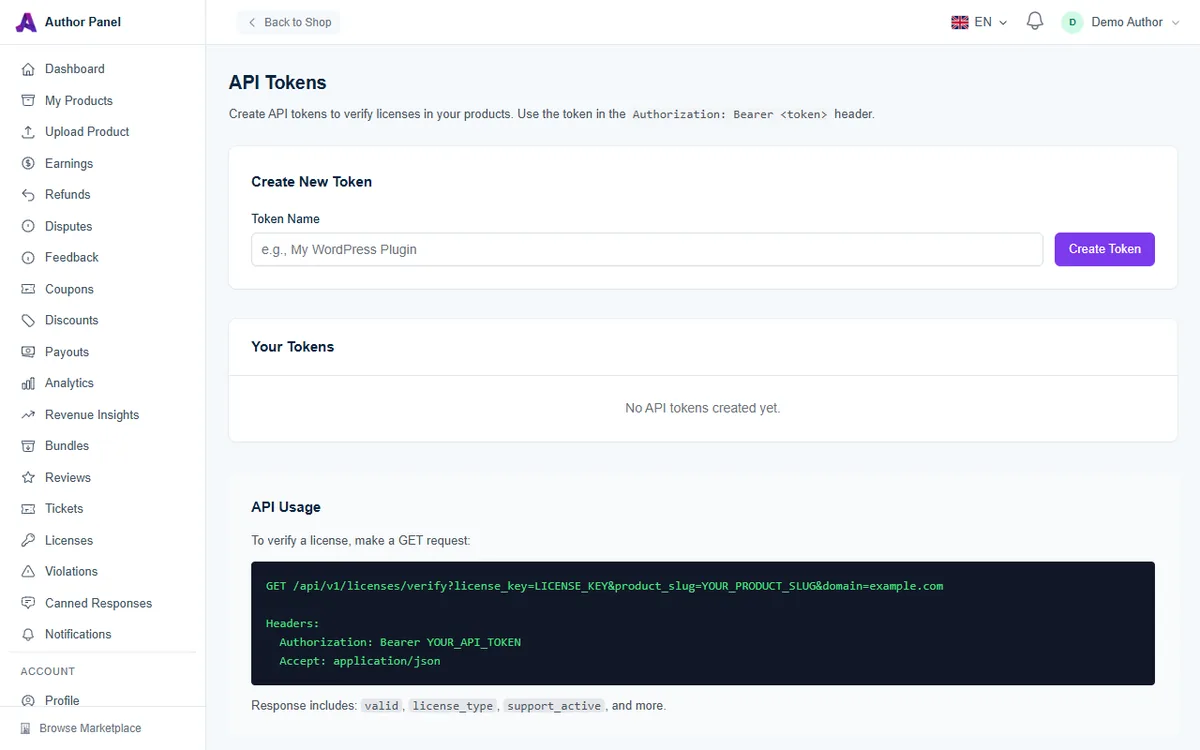
Send the token in the Authorization: Bearer header, together with Accept: application/json.
Manage and revoke tokens
Your Tokens lists every token with its name, the date it was created and when it was last used, or "Never used". You can have up to 10 tokens at a time. Tokens don't expire on their own, so revoke any you no longer need: click Revoke and confirm. A revoked token stops working immediately. If a token may have leaked, revoke it and create a new one.
The SDK sandbox license
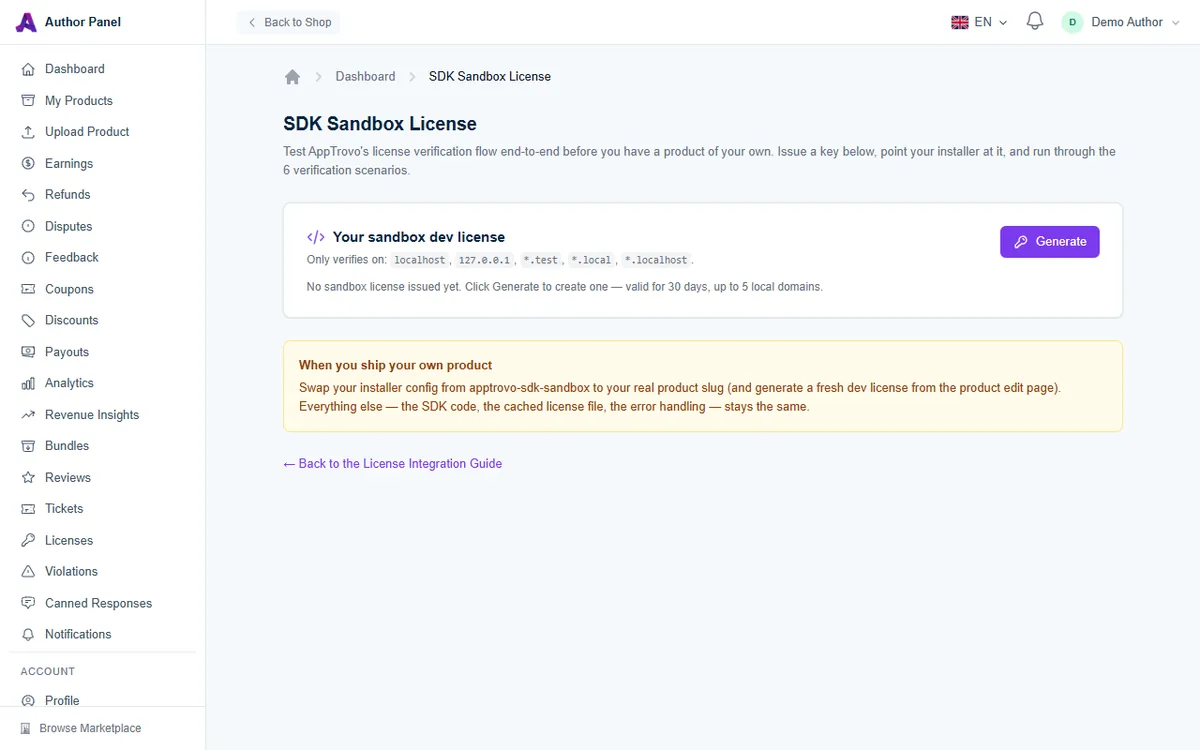
The sandbox lets you test license verification before you have created a product. It gives you a developer key for a shared sandbox product whose slug is apptrovo-sdk-sandbox.
- Open /author/sandbox-license. If you have no products yet, your author dashboard also shows a Get sandbox license button.
- Click Generate. Your key appears with a copy button, its expiry date, the domain slots in use and the product slug.
- Copy the Quick smoke test commands shown under the key. The first, using
domain=localhost, should return"valid": true. The second, using a public domain, must be rejected. - Point your installer at the sandbox slug and run through your verification scenarios.
Developer licenses for your own products
Once you have a product, test against it directly:
- Open My Products and click the product to open its detail page.
- Find the Developer Test License card and click Generate.
- Copy the key and the product slug from the card, then use the Quick test command to confirm it works.
When you ship, swap the sandbox slug in your installer config for your real product slug. The rest of your integration stays the same.
Developer license rules
Sandbox and per-product developer licenses work the same way:
- They verify only on local hostnames:
localhost,127.0.0.1,::1, and names ending in.test,.localor.localhost. A real domain is rejected, so the key can't be used in production. - Every check must include the
domainparameter. - Each key has 5 domain slots and is valid for 30 days. Click Extend 30 days on the same card to push the expiry forward. The key stays the same.
- You get one developer license per product. Generating again extends the existing key instead of creating a new one.
- The verify response reports
"license_type": "developer"and"is_dev": true, so your code can tell test keys apart.
Frequently asked questions
Why don't I see API Tokens in the sidebar?
The page currently has no menu entry. Bookmark /author/api-tokens.
My developer key says "License has expired"
Open the card where you created it and click Extend 30 days. The same key starts working again.
Related articles
Was this article helpful?