

Finding Your License Key
You get a license key for each product you buy or claim on AppTrovo. Most products ask for this key during installation to activate your copy. This article shows every place you can find your key, along with how to reveal and copy it.
When your key is issued
A key is created as soon as your order completes, whether you paid for the Commercial License or claimed a free Community edition. Each product line in an order gets its own key. If you buy the same product twice, for example for a second project, you get two separate keys.
A key is a 36-character code in five groups separated by hyphens, for example xxxxxxxx-xxxx-xxxx-xxxx-xxxxxxxxxxxx.
Your Licenses page
To see all your keys in one place, open Licenses in the left sidebar of your account, or go to /account/licenses.
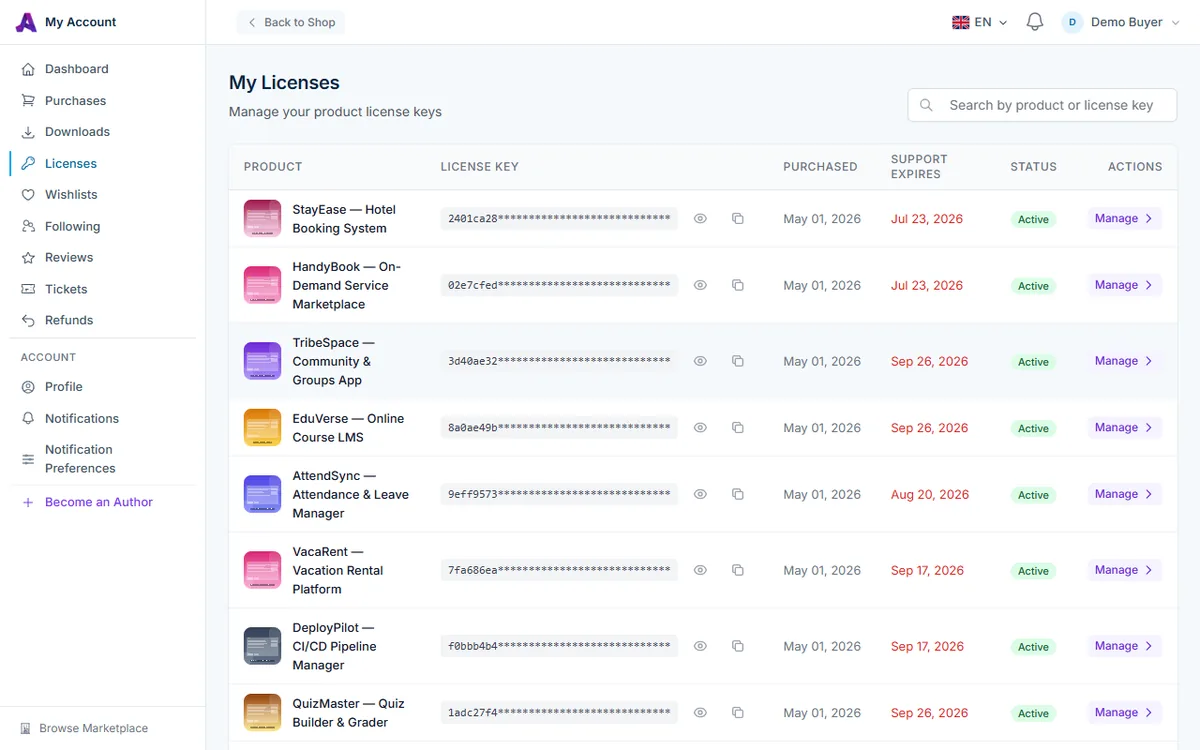
The My Licenses table has these columns:
- Product: the product the key belongs to.
- License Key: the first eight characters, with the rest masked. Click the eye icon to show or hide the full key. Click the copy icon to copy the full key to your clipboard.
- Purchased: when the license was issued.
- Support Expires: when the author's support window ends. Past dates appear in red, and N/A means no support period is included with the license.
- Status: Active, Inactive or Expired.
- Actions: Manage opens the license details.
If you own a lot of products, type a product name or part of a key into the Search by product or license key box at the top right. The list shows 15 licenses per page.
License details
Click Manage on any row to open the license page.
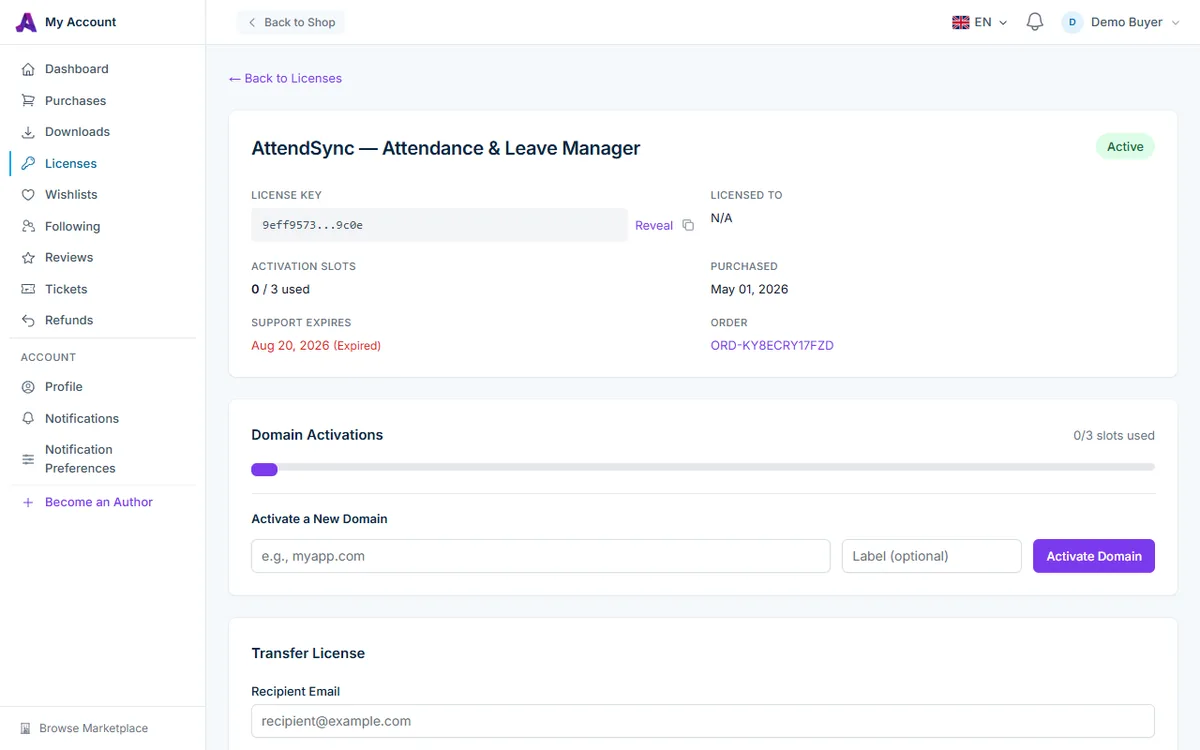
The License Key field shows the first eight and last four characters. Click Reveal to see the full key, then Hide to mask it again. The copy icon next to it copies the full key whether or not it is revealed, and briefly changes to a check mark to confirm.
This page also shows:
- Licensed To: the billing name from your order, or N/A if none was recorded.
- Activation Slots: how many domains are active out of your limit.
- Purchased and Support Expires dates. Instead of a date, Support Expires shows Not included when the license has no support period or no author support, and No author support (Community) for Community licenses.
- Order: the order number, which links to the order details.
Other places your key appears
- Downloads. In Downloads, open a product. The Quick Setup Guide shows Your License Key under the Deploy & activate step, right next to the files you are installing.
- Order confirmation email. Your order confirmation lists each product with its edition and the key, for example "(Commercial License) … License: …".
- Purchases. Your Purchases list shows which edition you bought, Community or Commercial, for each item.
Beta keys you redeem also appear on your Licenses page like any other license. See Redeeming a Beta Key.
Keep your key private
Your key is tied to your account and your activation slots. Sharing it with anyone outside the project it was bought for is against the license terms. Anyone who has the key can also use up your slots.
Troubleshooting
A product I bought is not on my Licenses page
Check that you are signed in to the account you used for the purchase. Keys are issued only after an order completes, so an order that is still pending or failed has no key yet. Check its status under Purchases. If someone transferred a license to you, it appears only after an admin approves the transfer.
My license says Inactive
A license becomes inactive when its purchase is refunded, when it has been replaced by an upgrade from Community to Commercial (use the newer key in the list), or when it has been deactivated for a terms violation. If none of these apply, contact AppTrovo support.
The installer rejects my key
Copy the key with the copy icon instead of retyping it, and make sure the license is Active and has a free activation slot. See Managing Domain Activations.
Related articles
Was this article helpful?