

Contacting AppTrovo Support
The fastest answer usually comes from the Help Center, and the right person to ask depends on whether your question is about an app or about AppTrovo itself. This guide shows where to look first and how to reach the AppTrovo team when you need to.
Start with the Help Center
Open the Help Center from Help Center in the Resources column of the site footer.
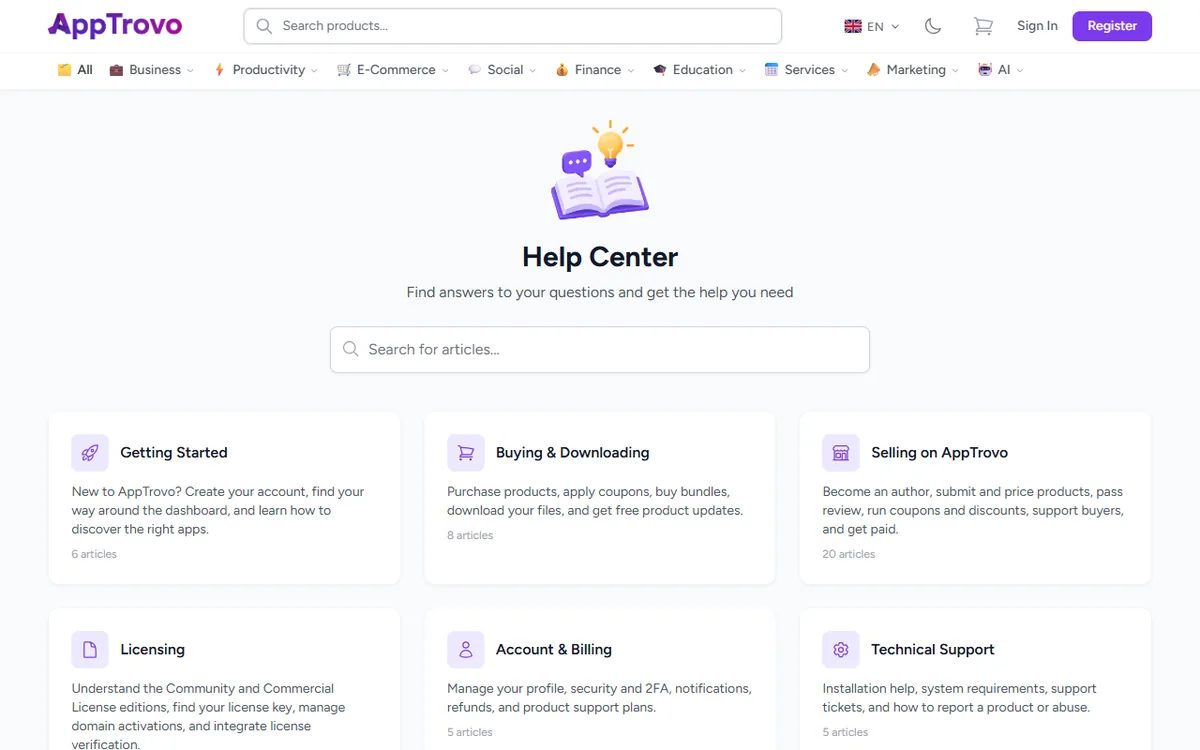
- Search: type a few words into Search for articles... and press Enter. The search looks through article titles and their full text, so error messages and button names work well as search terms.
- Browse: each category card shows a short description and how many articles it holds. Click a card to see all of its articles.
- Popular Articles: the most-read articles are listed below the categories.
At the end of every article you can answer Was this article helpful? with Yes or No. Your vote shows us which articles need work. The FAQ page also answers common short questions.
Decide who to contact
AppTrovo is a marketplace: each app is built and supported by its author, while AppTrovo runs the store, payments, accounts and licensing.
Contact the app's author about
- Installing, configuring or upgrading the app.
- Errors, bugs or unexpected behavior in the app.
- Feature requests and customization questions.
- Pre-sale questions, which you can ask on the product's Comments tab.
Author support is included with the Commercial License for the support period shown on the product page; the free Community edition does not include author support. See Extending Product Support if yours has ended.
Contact the AppTrovo team about
- Signing in, your account, email or security settings.
- Payments, invoices and checkout problems.
- Downloads that fail or files that are missing.
- License keys and domain activations.
- An author who does not respond within their support period.
- Reporting a product, review or comment. See Reporting a Product or Abuse.
Open a support ticket
Tickets are the main way to reach both authors and the AppTrovo team, and they keep the whole conversation in one place.
- At the bottom of the Help Center, under Still need help?, click Open a Support Ticket. If you are not signed in, the button reads Sign in to get support. You can also go to Tickets in your account and click New Ticket.
- Fill in the Subject, Category, Priority and Message.
- Set Related Product (optional) to route the ticket:
- Choose the product to send the ticket to its author.
- Leave it at None to send the ticket to the AppTrovo team.
- Click Submit Ticket, then follow replies on the ticket's page.
The full walkthrough, including categories, priorities, reopening and rating a ticket, is in Creating a Support Ticket.
If you are an author
Open Tickets in the Author Panel, or go to /author/tickets, and click New Ticket. Leave Related Product at None (General) for questions about selling, payouts or the review process.
If you cannot sign in, or you do not have an account, email support@apptrovo.com. The address is also shown at the bottom of AppTrovo's legal pages, such as the Terms of Service and Refund Policy. If you have an account, a ticket is better: it is linked to your orders and licenses, and the history stays in one place.
Looking for an app we do not have?
That is not a support request. Use the Tell us what you need page and choose Request a custom build or Suggest a product.
Help us help you
- Use one ticket per problem and a subject that names it.
- Include the order or license involved, the product version and the exact error text.
- Say what you expected, what happened and what you have already tried.
- Never send passwords, full card numbers or private keys.
- Reply in the same ticket rather than opening a new one. If it was closed, click Reopen Ticket.
Related articles
Was this article helpful?