

Creating Coupon Codes
Coupon codes give a discount to buyers who know the code. They work well for launch promotions, newsletters you run yourself, social posts and thank-you offers for existing customers. If you want everyone to see a sale price without a code, use a discount instead. See Running Discounts and Sales.
Create a coupon
- In the Author Panel, click Coupons in the sidebar, then New Coupon.
- Fill in the fields described below.
- Under Applies to Products, tick at least one of your products. Use Filter products... to search, or Select all to cover your whole catalog.
- Leave Active ticked to make the code usable right away, or untick it to prepare the coupon without switching it on.
- Click Create Coupon.
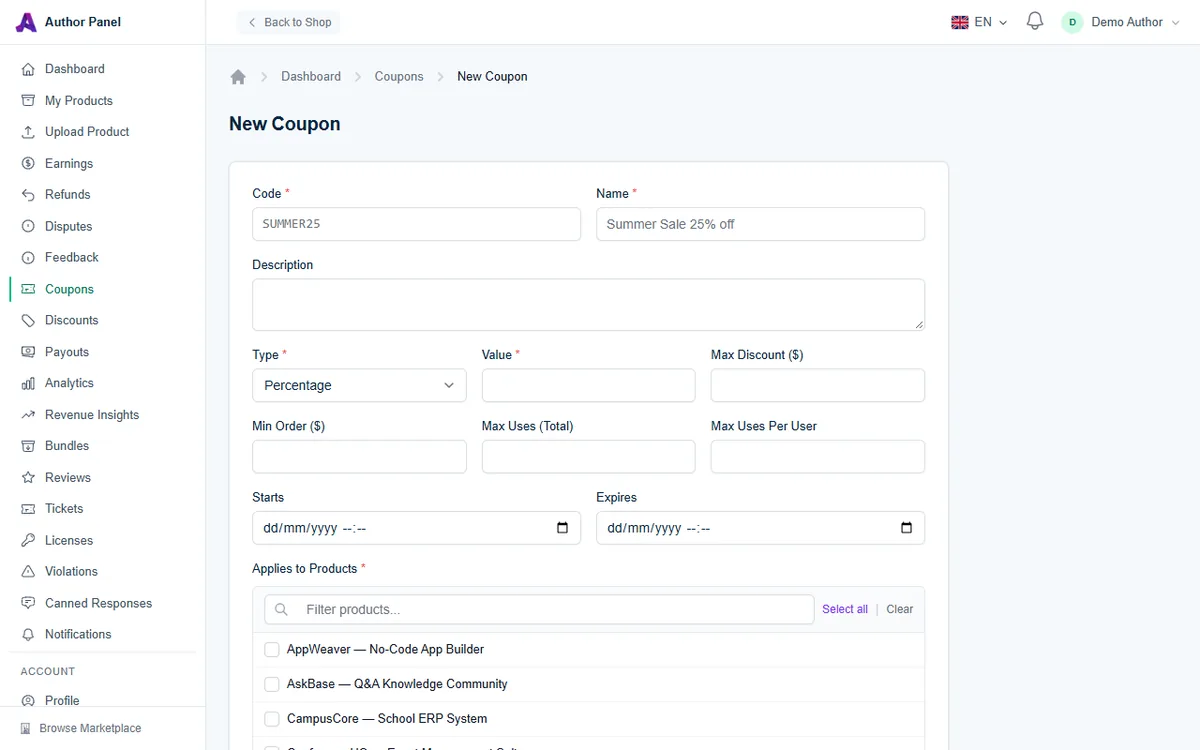
The coupon fields
Code and name
- Code (required): what buyers type, for example SUMMER25. Up to 40 characters using letters, numbers, dashes and underscores. Codes are saved in uppercase and are not case-sensitive for buyers. Every code must be unique across AppTrovo, so if yours is taken, add something specific to you.
- Name (required): a label that helps you recognize the coupon, for example "Summer Sale 25% off".
- Description (optional): your own notes about the promotion.
Discount
- Type: Percentage or Fixed Amount.
- Value: the percentage or dollar amount taken off.
- Max Discount ($) (optional): a ceiling on the discount. Useful with percentage coupons on expensive products.
Limits and dates
- Min Order ($) (optional): the buyer's cart subtotal must reach this amount.
- Max Uses (Total) (optional): how many orders can use the code in total.
- Max Uses Per User (optional): how many times one buyer can use it.
- Starts and Expires (optional): the window when the code works. The expiry must be on or after the start. Leave both blank for a code that works until you turn it off.
How the discount is calculated
- The coupon applies only to the products you selected. Other items in the buyer's cart, including other authors' products, are charged at full price.
- A percentage coupon takes that percentage off the total of the eligible items. A fixed coupon takes the amount off that total.
- The discount never exceeds the price of the eligible items, and never exceeds Max Discount if you set one.
- If a product is already on sale through a discount, the coupon is applied to the sale price.
- A cart can hold one coupon at a time, and coupons cannot be combined with bundles.
- Your revenue share is calculated on the price after the discount.
How buyers redeem a code
Buyers enter the code in the Coupon code field in their cart. If the code cannot be used, they see the reason, for example that it has expired, has not started yet, has reached its usage limit, does not apply to anything in the cart, or needs a higher order total. Share the buyer-side guide, Using Coupons and Discounts, if your customers need help.
Manage your coupons
The Coupons page lists every code with its Name, Discount, number of Uses, Status (Active or Inactive) and Expires date.
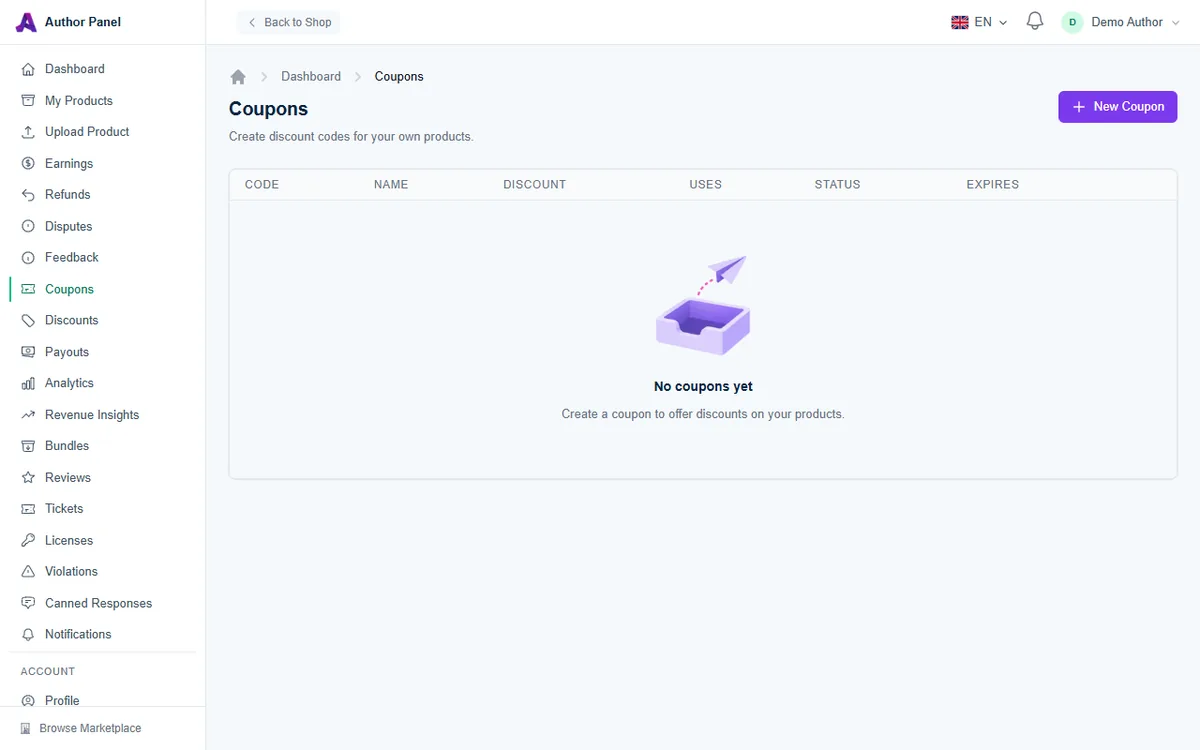
- Click Edit to change any field or product, or to switch a coupon off by unticking Active.
- Click Delete to remove a coupon for good. Orders that already used it keep their discount.
Tips
- Use a separate code for each channel (for example YOUTUBE10 and BLOG10) and compare the Uses column to see which works.
- Set Max Uses (Total) for "first 50 buyers" style offers.
- Set Max Uses Per User to 1 for most promotions.
- Pair percentage coupons with Max Discount to protect your margins on high-priced products.
Troubleshooting
"The code has already been taken"
Another coupon on AppTrovo already uses that code. Choose a more distinctive one.
A buyer says the code does not apply
Check that the product in their cart is ticked under Applies to Products, that the coupon is Active and within its dates, and that the cart does not contain a bundle.
Related articles
Was this article helpful?