

Running Discounts and Sales
A discount puts one or more of your products on sale for everyone. The reduced price shows across the storefront next to the original price and is charged at checkout automatically, so buyers do not need a code.
Discounts, coupons and bundles
- Discounts lower the visible price for everyone. Use them for launch weeks, seasonal sales and clearance.
- Coupons only work for buyers who enter a code. See Creating Coupon Codes.
- Bundles discount a group of products bought together. See Creating and Managing Bundles.
Create a discount
- In the Author Panel, click Discounts in the sidebar, then New Discount.
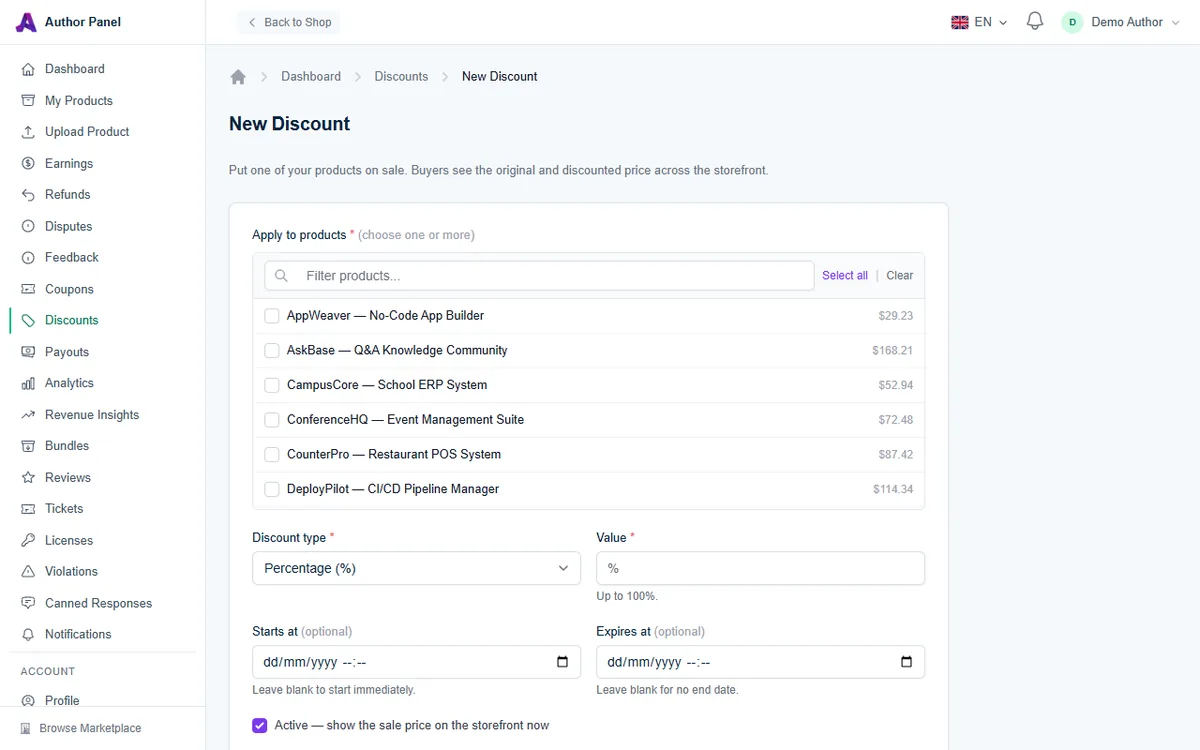
- Under Apply to products, tick one or more products. Use Filter products... to search, or Select all. Only paid products are listed, because free products cannot be discounted.
- Choose the Discount type: Percentage (%) (up to 100%) or Fixed amount ($).
- Enter the Value.
- Optionally set Starts at (leave blank to start immediately) and Expires at (leave blank for no end date). The expiry must be on or after the start.
- Keep Active — show the sale price on the storefront now ticked, or untick it to save the discount without running it.
- Click Create Discount.
A fixed amount is taken off each selected product's price. A product's price never goes below $0, so check that a fixed amount makes sense for your cheapest selected product.
What buyers see
- Product cards and product pages show the original price alongside the sale price.
- The sale price is what goes into the cart and what the buyer pays.
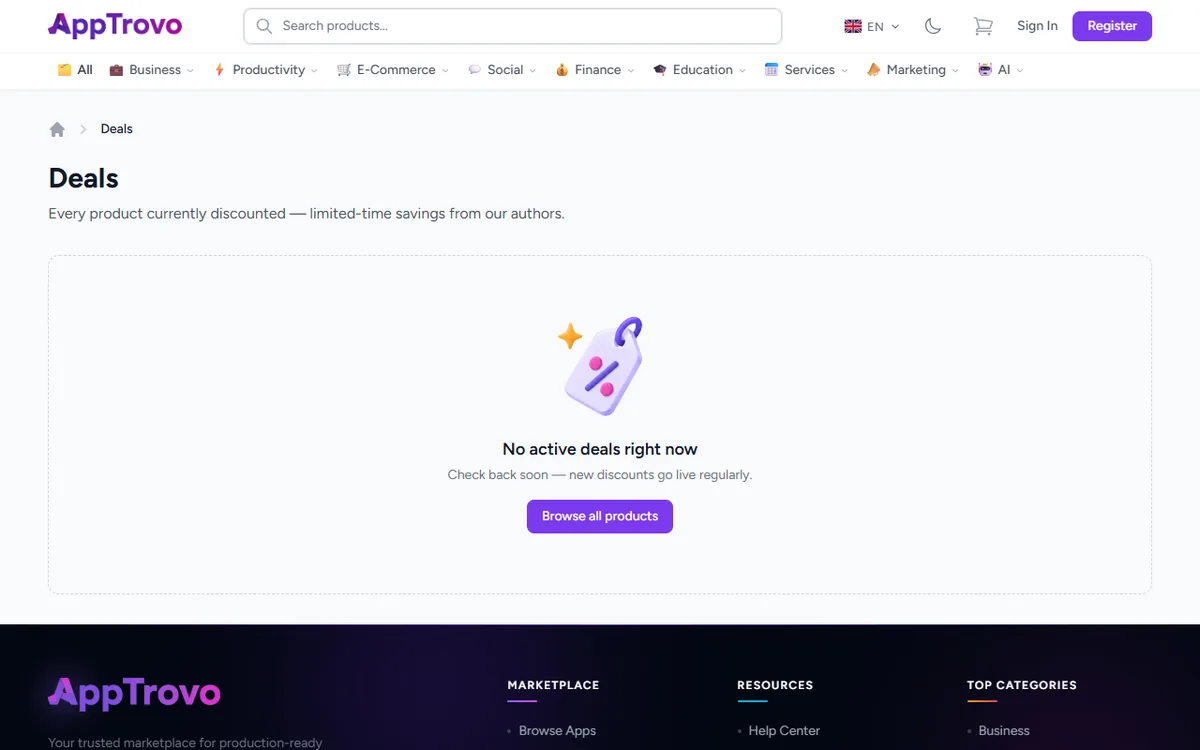
- Every product currently on sale appears on the public Deals page, which buyers can reach from the site footer.
- If the product has a free Community edition, the discount applies to the Commercial License price. Community stays free.
How discounts interact
- Discounts do not stack. If more than one discount applies to a product at the same time, including a marketplace-wide or category sale run by AppTrovo, the buyer gets the single biggest reduction.
- Coupons apply on top. A buyer who enters one of your coupon codes gets it applied to the sale price.
- Bundles use list prices. A bundle's discount is calculated from your regular prices, not from sale prices.
- Your earnings are calculated on the price the buyer actually pays, so your 90% share (with the platform fee currently 10%) is taken from the sale price.
Manage your discounts
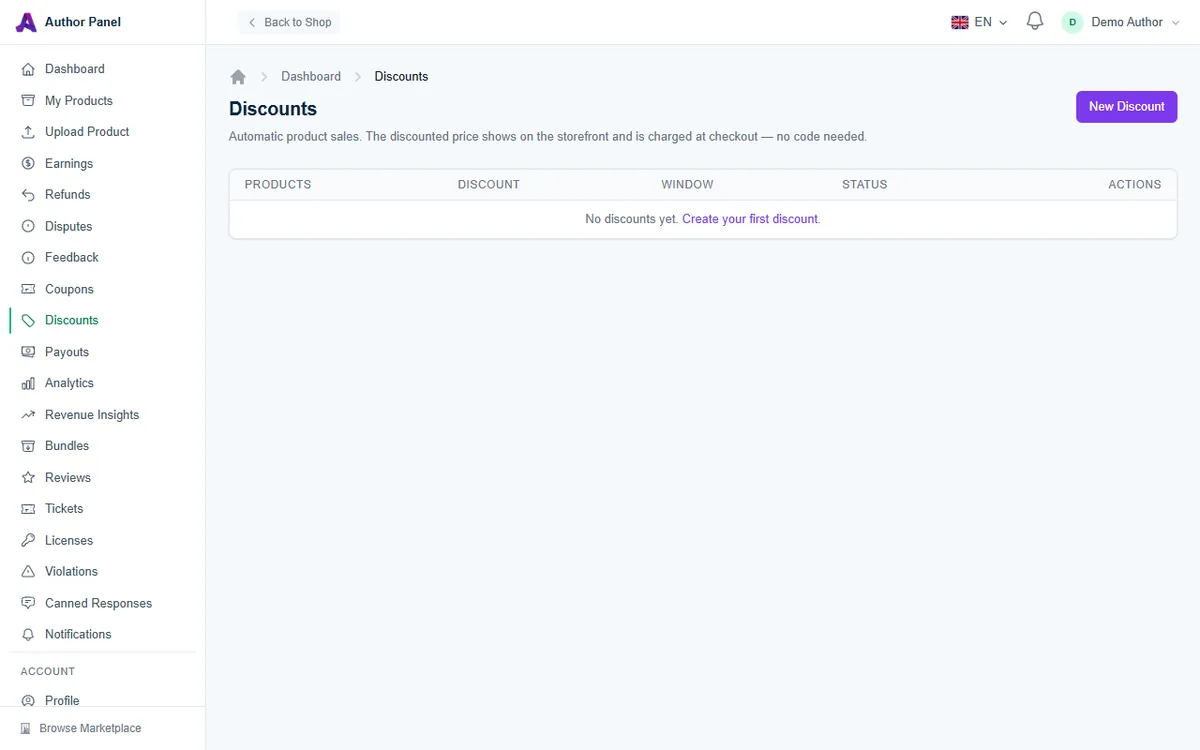
The Discounts page lists each discount with its Products, Discount, Window (start and end) and Status:
- Live: running now.
- Scheduled: active, but the start date is still in the future.
- Expired: the end date has passed.
- Inactive: switched off.
- Click Edit to change the products, amount, dates or active setting, then Save Changes.
- Click Delete to remove a discount. The products go back to full price immediately.
Running an effective sale
- Schedule ahead: create the discount with a future Starts at date, and it switches on by itself.
- Always set an Expires at date for time-limited sales, so the price returns to normal without you having to remember.
- Avoid running sales back to back. Buyers learn to wait for the next one.
- Pair a sale with a new version release to bring back past visitors.
Frequently asked questions
Why is my product missing from the product list?
It is marked as free. Only products with a price can be discounted.
My discount is saved but the storefront shows the full price
Check the status on the Discounts page. A Scheduled discount has not started yet, and an Inactive one needs Active ticked on its edit page. If another discount or a marketplace sale gives a bigger reduction, that one is shown instead.
Related articles
Was this article helpful?