

Editing Your Product Listing
The edit page lets you change your listing's description, attributes, pricing, SEO fields and tags without submitting a new version, and its media until the product is approved. Changes to the product name, to the files buyers download and, once the product is approved, to its media go through the Upgrade flow instead.
Opening the edit page
- In the Author Panel, open My Products.
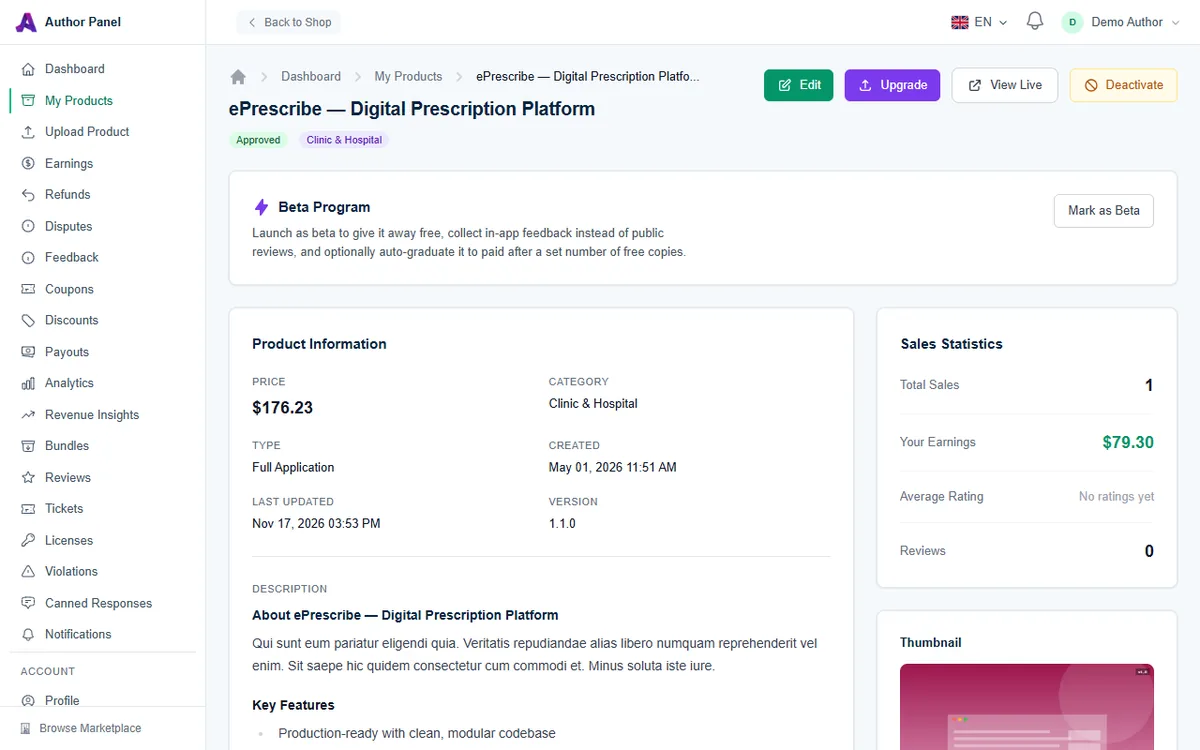
- Click Edit next to the product, or open the product and click Edit at the top of its detail page.
The Edit button is available for drafts, products that need revision, approved products and deactivated products. It is hidden while a product is Pending Review or In Review, and for permanently rejected products.
The edit tabs
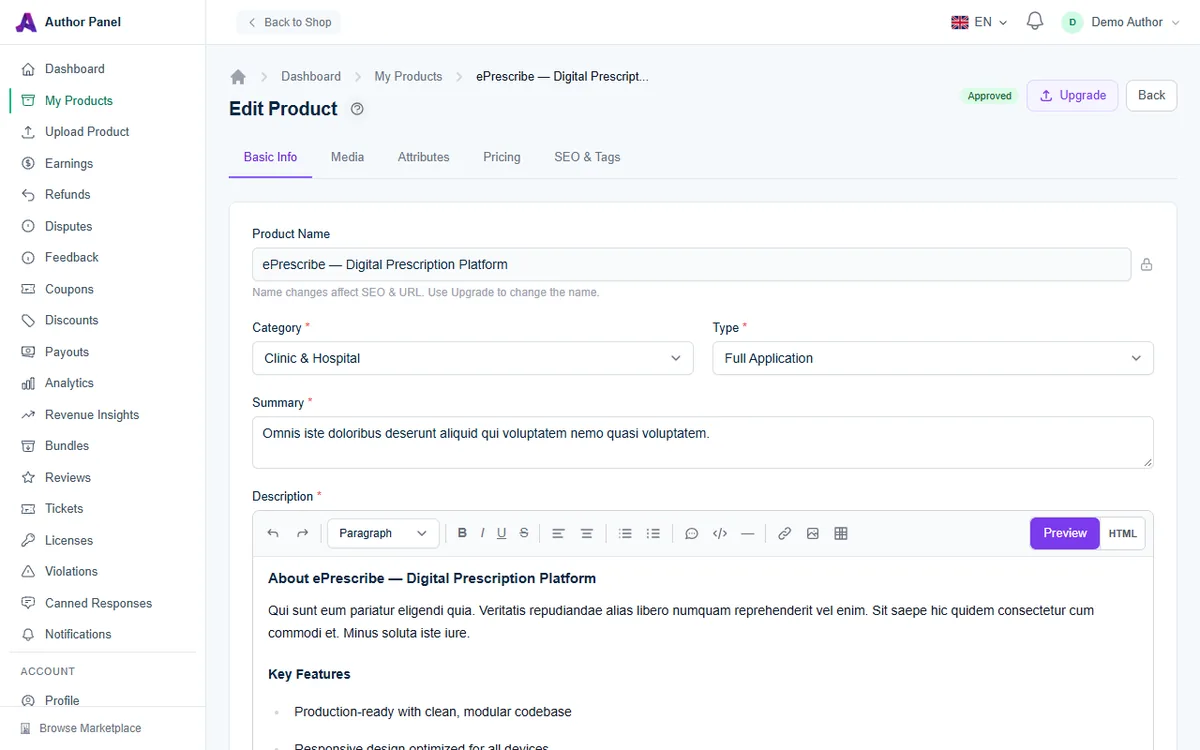
Basic Info
- Product Name is locked, because name changes affect search engines and your listing's URL. To rename an approved product, submit an Upgrade (see below).
- Category, Type, Summary and Description can all be changed here.
Media
For drafts and products that need revision, you change media directly on this tab. Once a product is approved, including when it is live or deactivated, the Media tab is read-only: it shows your current thumbnail, icon and screenshots with the message Use Upgrade to change media — media changes are reviewed. Submit media changes from the Upgrade page instead. For a deactivated product, reactivate it first, then submit an upgrade.
The requirements are the same on both pages:
- Thumbnail: at least 1200×800 px, 3:2 ratio, up to 10 MB. Uploading a new one replaces the current one.
- Icon: square (1:1), at least 80 px, up to 512 KB.
- Screenshots: at least 1280×720 px and up to 5 MB each. New screenshots are added to the existing set. Remove one with its delete button, or click Remove all. Keep at least three, as reviewers and the storefront expect them.
Files (drafts and revisions only)
A Files tab appears only for drafts and products that need revision. Use it to upload or replace the Main Product File (up to 500 MB) and add or remove Additional Files. Once a product is approved, this tab disappears and new files go through Upgrade.
Attributes
Select at least one option for each attribute your category offers. If an option is missing, add your own in the custom field below the attribute and click Add.
Pricing
- Change the Price (USD) or tick Free Product. A breakdown shows the platform fee (currently 10%) and what You Earn.
- Turn the free Community edition on or off with Also offer a free Community edition. See Offering Community and Commercial Editions.
- Turn Include buyer support on or off and choose 3, 6 or 12 months.
SEO & Tags
- Meta Title, Meta Description and Live Demo URL.
- Demo Credentials: up to 10 rows, one per role.
- Tags: between 5 and 15. Press Enter or a comma to add each one.
Saving your changes
Click Save Changes at the bottom of the page. Changes from every tab are saved together, so you can work across several tabs and save once. If anything fails validation, a red box at the top of the form lists the errors to fix.
For an approved product, saved edits update your live listing straight away. There is no new review for edits saved here, so check prices and text carefully before saving. The note next to the button reads Changes here save to your live listing instantly. Media, name and file changes go through Upgrade and are reviewed before they go live.
While an upgrade is waiting for review, a banner at the top of the edit page lists its pending listing changes and any media changes pending review. When the upgrade is approved, those pending values replace the same fields, including any edits you save here in the meantime.
For a draft or a product that needs revision, a Ready to publish? box appears below the form. Save first, then click Submit for Review (or Resubmit for Review).
Edit or Upgrade?
- Use Edit for description, summary, category, attributes, price, support period, SEO fields, demo details and tags, and for media before the product is approved.
- Use Upgrade for a new product file or version, a new product name, a preview video, or media changes (thumbnail, icon, screenshots) on an approved product. Upgrades are reviewed, and your current version stays on sale meanwhile. Listing and media changes made on the Upgrade page go live only when the upgrade is approved. See Releasing a New Version.
Other actions on the product page
- View Live opens your public product page.
- Deactivate hides the product from the marketplace. Reactivate brings it back.
- Mark as Beta makes the product free while in beta and collects feedback instead of public reviews. See Product Feedback and Beta Testing.
Troubleshooting
There is no Edit button on my product
The product is in review or was permanently rejected. Wait for the review decision, then try again.
My new thumbnail was not accepted
It must be at least 1200×800 px and exactly 3:2. Resize or crop it and upload again.
Related articles
Was this article helpful?