

Product Feedback and Beta Testing
AppTrovo lets you launch a product as a free beta, collect structured bug reports instead of public reviews, and then graduate it to a paid release. Feedback from beta testers and from Community edition users lands on one page in your Author Panel.
Put a product into beta
The beta program is available for approved, live products.
- Open My Products and click the product to open its detail page.
- In the Beta Program panel, click Mark as Beta and confirm.
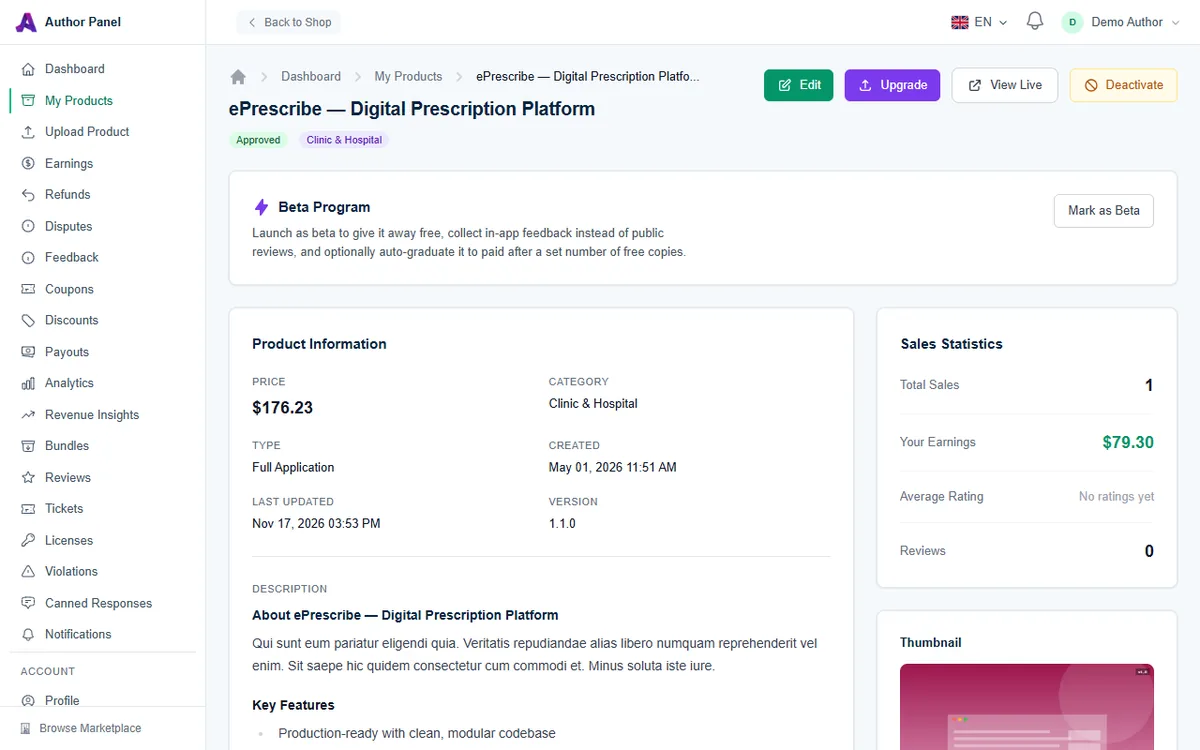
While a product is in beta:
- It is free for everyone, with no paid support add-on.
- Public reviews and comments are locked. The product page shows a Beta Feedback tab where testers report bugs and share suggestions.
- The panel shows an Active badge, and your beta products are listed on the public beta page.
Limit the number of free copies
Once a product is in beta, the panel shows a Free-copy limit field:
- Leave it blank for unlimited free copies while the beta runs.
- Enter a number and click Save to auto-graduate the product to paid once that many free copies have been claimed. A progress bar shows how many have been claimed so far.
Graduate from beta
Click Remove from Beta and confirm to end the beta yourself. The product's price is restored, public reviews reopen, and everyone who got a free copy is asked to leave a review. The same happens automatically when a free-copy limit is reached. If you put a product back into beta later, its free-copy count starts again from zero.
Who can send feedback
- Beta products: any signed-in user can send feedback from the Beta Feedback tab.
- Community edition users: buyers using your free Community edition can't post public reviews or comments, so they see a Feedback tab instead. See Offering Community and Commercial Editions.
Each report has a type (bug, feedback or suggestion), a subject, a message and an optional screenshot. AppTrovo records the product version and the reporter's browser details with the report, and emails you when a new report arrives.
Manage feedback on the Feedback page
Open Feedback in the sidebar to reach the Product Feedback page.
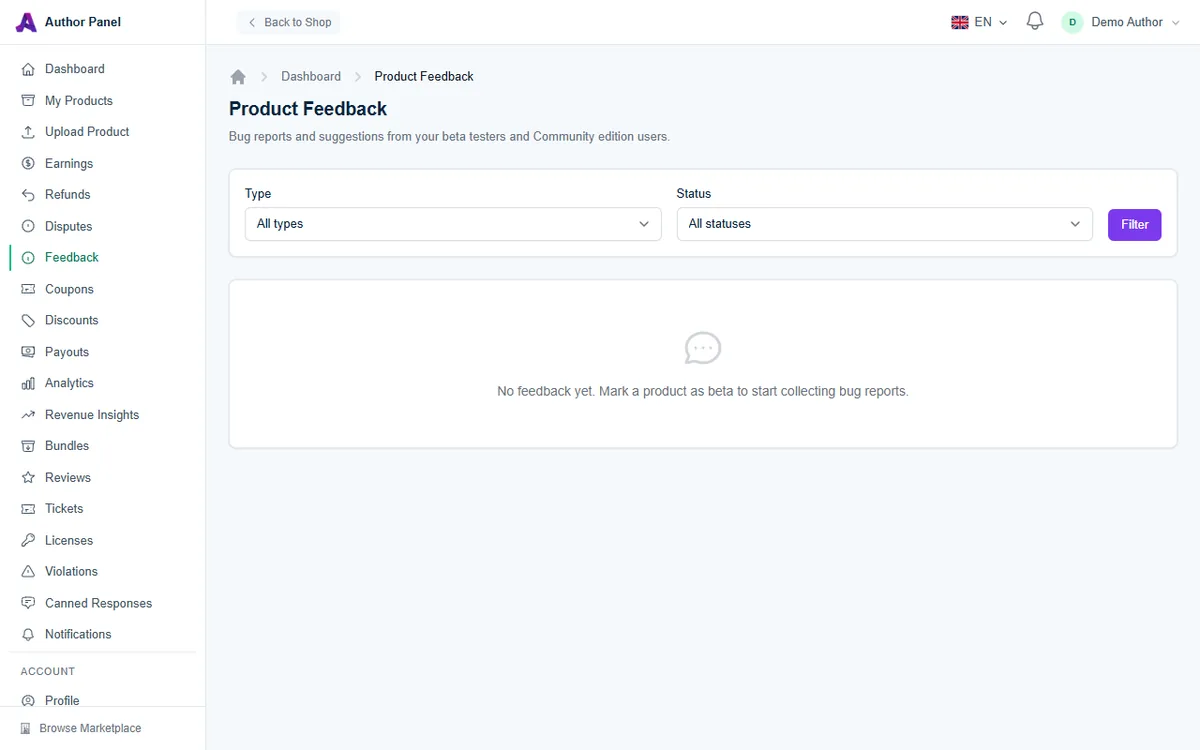
- Narrow the list with Type (Bug, Feedback, Suggestion or Auto Error) and Status, then click Filter.
- Read each report, including any attached screenshot and the version it was sent from.
- Set the status to Open, In Progress, Resolved or Closed. Optionally add a short Resolution note, such as "Fixed in v1.2", and click Update.
When you mark a report Resolved, the person who sent it is notified, so they know to update. Ship the fix with a new version; see Releasing a New Version.
Catch crashes with automatic error tracking
Testers don't report every bug. When you have at least one product in beta, the Feedback page shows an Auto error tracking section. It gives you an endpoint, POST /api/v1/beta/errors, and a ready-made snippet for each beta product, including that product's private token. Click Copy snippet to copy it.
Have your beta build send unhandled exceptions to the endpoint. Each request needs the product token and a message, and can include exception, file, line, trace, url, version and environment. Reports appear on the Feedback page as Auto Error items. The endpoint accepts up to 60 requests per minute, so report each error once rather than in a loop.
Keep the token private. Anyone who has it can send error reports for that product. If a beta product shows Re-save beta status on this product to generate its token. instead of a snippet, it has no token yet. Removing it from beta and marking it as beta again creates one, but removing it also ends the beta: the price is restored and free-copy holders are asked for reviews. If you'd rather not do that mid-beta, contact AppTrovo support.
Related articles
Was this article helpful?