

Releasing a New Version
Once a product is approved, new releases go through the Upgrade page. You upload the new file with a version number and an optional changelog, a reviewer checks it, and your current version stays on sale until the new one is approved.
Before you start
- Upgrade is available only for approved products. For a draft, or a product that needs revision, upload files on the Files tab of the edit page instead.
- Have the new archive ready: a ZIP or RAR file of up to 500 MB.
- Choose a version number you have not used before for this product.
Submit an upgrade
- In the Author Panel, open My Products and click Upgrade next to the product. You can also click Upgrade on the product's detail or edit page.
- On the Version & Files tab, enter the Version Number, for example 2.0.0. The current version is shown under the field.
- Choose the new Product File.
- Optionally fill in the Changelog. The empty box suggests a layout: a What's New section with Added, Fixed and Improved lines, then Breaking Changes. Up to 5,000 characters.
- Optionally update the other tabs (see below).
- Click Submit Upgrade for Review.
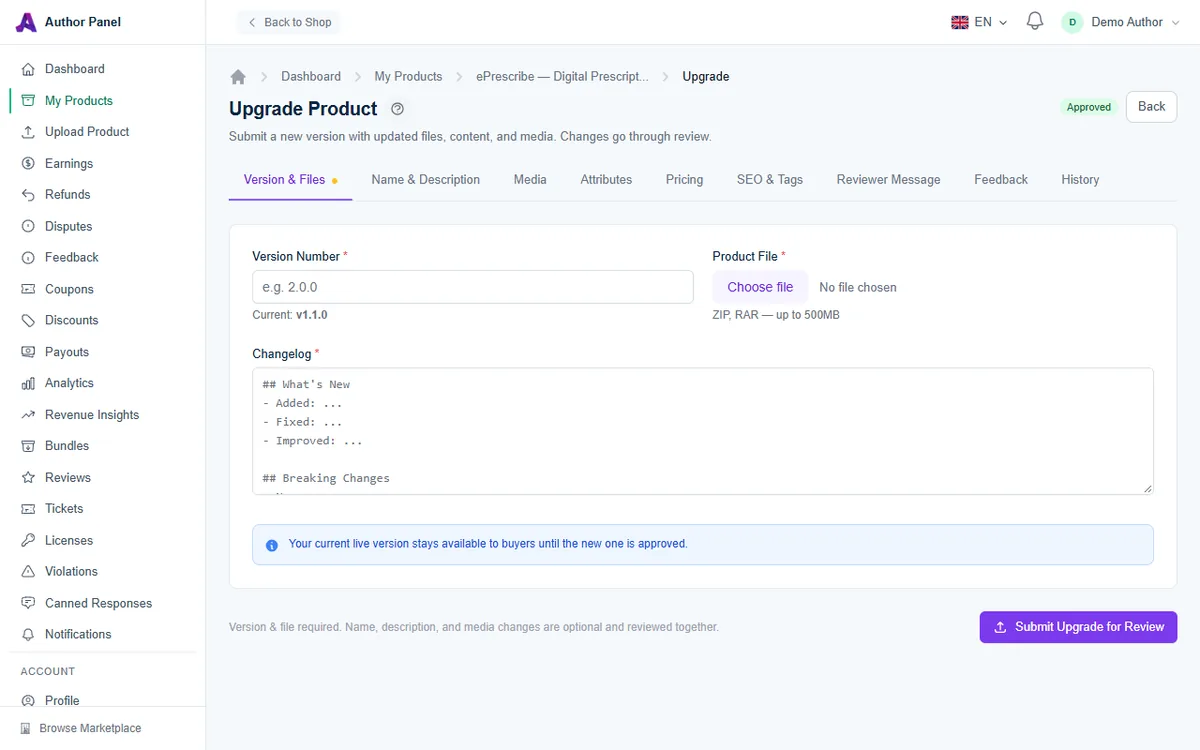
The other Upgrade tabs
Only the version number and file are required. The remaining tabs are optional, and anything you leave blank keeps its current value. Changes on these tabs, including Media, are reviewed with the upgrade and go live only when it is approved; a rejection discards them.
- Name & Description: this is the only place to rename an approved product. You can also update the summary, description and preview video URL. When the upgrade is approved, the product URL changes to match the new name, and the old URL redirects permanently to the new one. The name must not already be used by another product.
- Media: replace the thumbnail or icon, add screenshots, or remove existing ones. Your live listing keeps its current thumbnail, icon and screenshots until the upgrade is approved. The listing must still have at least three screenshots after your removals and additions.
- Attributes, Pricing and SEO & Tags: the same fields as the edit page, if they need to change with this release.
- Reviewer Message: a note for the reviewer (up to 2,000 characters) about what changed or what to focus on.
- Feedback: feedback from earlier review rounds, plus the review history.
- History: every version you have uploaded, with its status.
What happens after you submit
- The new version joins the review queue. Your product stays on sale, and buyers keep downloading the current version. While it waits, the Upgrade page shows a notice listing the listing and media changes that will go live on approval.
- When the reviewer approves it, the new version becomes current and your listing and media changes go live. Buyers who own the product are notified that an update is available, and your changelog appears on the Version History (Change log) tab of your product page.
- If the reviewer asks for changes or rejects the release, your current version stays live and untouched, and the listing and media changes submitted with it are discarded; enter them again with your next upgrade. Read the reviewer's notes on the Feedback tab, fix the issues and submit again with a new version number.
A new version is included in every buyer's existing purchase. Buyers do not pay again for updates.
Good release habits
- Use consistent semantic version numbers (major.minor.patch) so buyers can tell how big a change is.
- Call out breaking changes and any upgrade steps, such as database migrations, at the top of the changelog.
- Test the archive on a fresh installation and as an upgrade from the previous version.
- Use Reviewer Message to point out anything unusual, such as a new dependency.
Version history and retention
AppTrovo keeps your most recent versions (currently the latest five). When you upload more, the oldest version files are removed automatically. The History tab shows which versions remain.
Troubleshooting
"This version number already exists for this product"
Every upload reserves its version number, including uploads that were rejected. Use the next number, for example 2.0.1 instead of 2.0.0.
I am sent back to the edit page
The product is not approved yet. Upload your files on the edit page's Files tab and submit it for review first.
I submitted a second upgrade before the first was reviewed
The newer submission replaces the earlier pending one in the review queue, so only the latest upload is reviewed. Listing changes from the earlier submission are kept unless you change the same fields again. Pending media is kept too: a new thumbnail or icon replaces the pending one, new screenshots are added to the pending ones, and the Media tab starts with your pending screenshot removals already marked.
"Product name already exists"
Product names must be unique on AppTrovo. Choose a different name on the Name & Description tab.
"Please keep at least 3 screenshots"
You removed screenshots on the Media tab. Add new ones or undo the removal before submitting.
Related articles
Was this article helpful?