

Stripe Fees and Payment Settings
The Payment Settings page is where you connect Stripe to receive your earnings and decide who pays Stripe's processing fee on your sales. Open it from the Author Panel sidebar, under Account. For security, you are asked to confirm your password before the page opens, at most once every 3 hours.
Connect your Stripe account
AppTrovo pays authors through Stripe Connect, so you need a connected Stripe account before you can be paid.
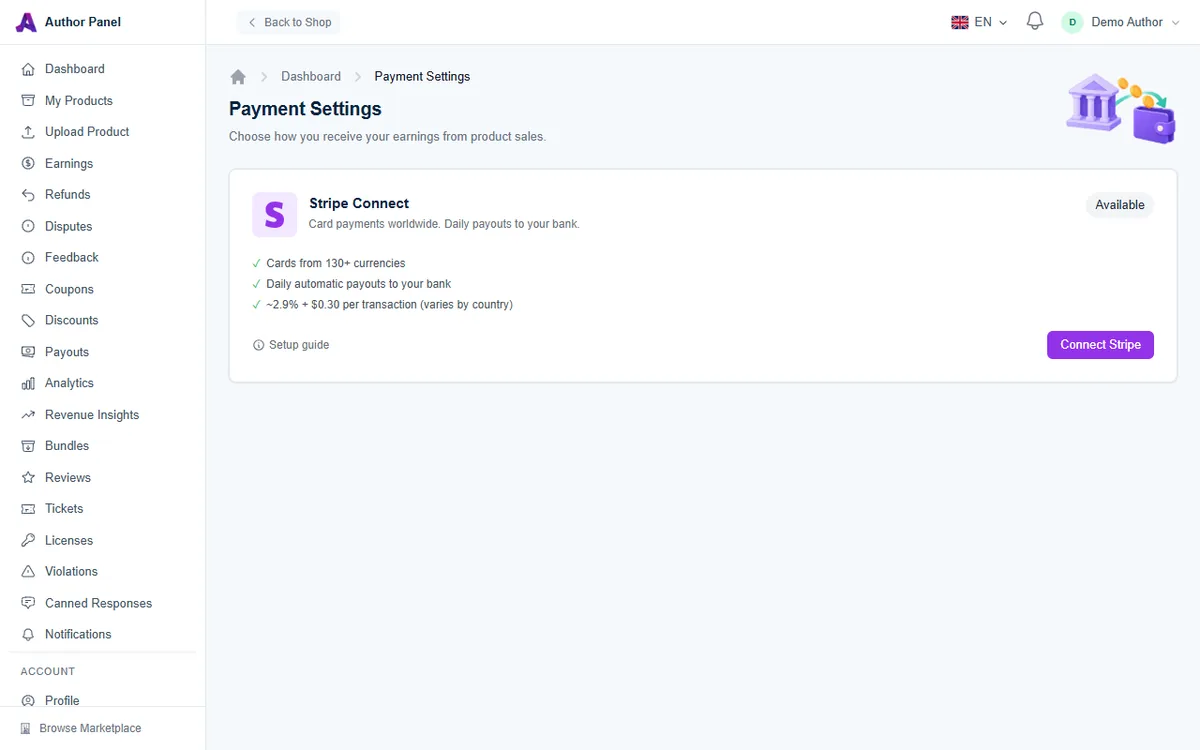
- On Payment Settings, find the Stripe Connect card. Its badge reads Available while you are not yet connected.
- Click Connect Stripe.
- Complete Stripe's onboarding. Stripe asks for identity details, your business details and a bank account.
- When you finish, Stripe sends you back to Payment Settings and the badge changes to Connected.
The Setup guide link on the card walks through what to have ready. You don't need an existing Stripe account first; if you already have one for another business, you can sign in to it during onboarding.
After you connect
The card shows your Stripe Account ID and, when Stripe reports it, the bank account your payouts go to. A green Payouts enabled line means Stripe has verified your account. If you see Complete onboarding to enable payouts instead, Stripe still needs information from you; sign in to your Stripe dashboard and finish the outstanding steps. Your account is treated as active, and sales can be paid to you directly, once Stripe enables both charges and payouts on it. If Stripe later restricts your account, you're notified, and new sales settle to the platform, with your share added to your AppTrovo balance, until Stripe re-enables it.
To unlink the account, click Disconnect and confirm. You won't receive new payouts until you connect again.
Who pays the Stripe processing fee
On top of AppTrovo's platform fee (currently 10%), Stripe charges a processing fee on every successful charge. The amount varies by payment method, currency and country. Once Stripe is connected, a Stripe Processing Fees section appears below the Stripe card with two options:
- I'll absorb Stripe processing fees: the fee is deducted from your payout. Buyers see a clean price at checkout. This is the default.
- Buyers absorb Stripe processing fees: an estimated fee is added to the buyer's checkout total as a separate line, labelled Processing fees (estimated). You receive your full price minus the platform fee, a clean 90% of the listed price.
Whichever option you pick, AppTrovo only ever takes its platform fee. The setting only changes who covers Stripe's processing cost on the sale: you or the buyer. If a sale is refunded or lost to a chargeback, Stripe keeps its fee and you cover it, whichever option you chose.
Change the setting
- Choose an option in Stripe Processing Fees.
- Click Save Settings.
- In the Confirm payment settings change dialog, click Yes, save.
The change applies to future sales. Existing payouts are not modified.
Preview your take-home with the Earnings Calculator
The Earnings Calculator in the same section lets you enter a sale price and compare both options. It shows the platform fee, the estimated Stripe fee, what the buyer pays and what you receive.
Estimated vs actual fees
Any figure shown before a sale is an estimate. That includes the Earnings Calculator, the "~2.9% + $0.30 per transaction (varies by country)" note on the Stripe card, and the processing-fee line at checkout. Estimates use typical US card rates. The exact fee is always the one Stripe reports after the charge, and that is what appears on your earning record.
On the Earnings page, the Stripe Fee column shows:
- The actual fee, once Stripe has confirmed it.
- A Pending badge while AppTrovo is waiting for Stripe to confirm the fee.
- A dash when the buyer absorbed the fee, so nothing was deducted from you.
Your Monthly Statement has a Stripe Fee column that works the same way, except that Refund processing fee and Chargeback fee entries always show their fee, even when buyers absorb the fee on your sales.
Support extensions are different
When a buyer extends support on one of your products after purchase, AppTrovo covers the Stripe fee and you receive a flat 90% of the extension price, whatever your fee setting. If the extension is refunded, Stripe's fee is deducted from your next payout. See Offering Support Plans.
Troubleshooting
I don't see the Stripe Processing Fees section
It only appears after your Stripe account is connected. Connect Stripe first.
The page says no payment gateways are available
The administrator has temporarily disabled new Stripe connections. Check back later or contact support.
Payouts are still not enabled after onboarding
Stripe usually needs one more document or detail. Sign in to your Stripe dashboard and look for the notice describing what is missing.
Related articles
Was this article helpful?