

Tax Information for Authors
As an author you receive income from your sales, so AppTrovo asks for basic tax details and gives you the records you need for your own filings. This guide covers the Tax Information page, your VAT details and where to find your earnings records.
Open the Tax Information page
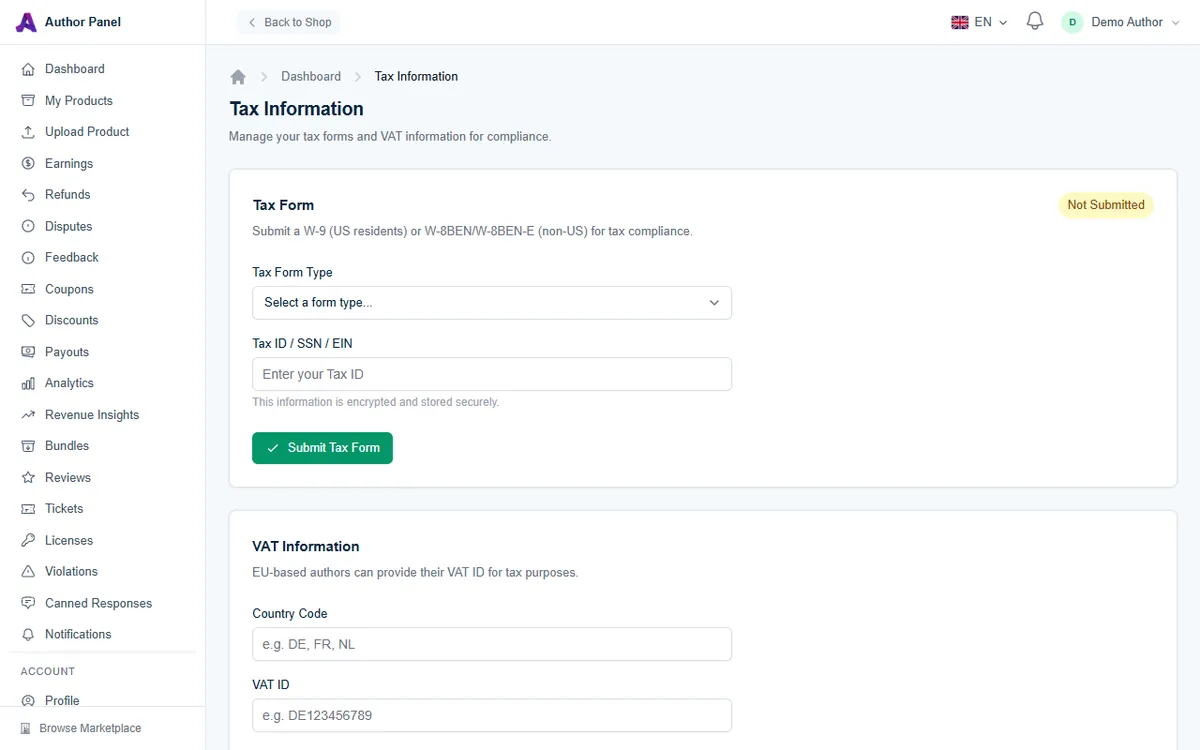
Go to /author/tax while signed in to your author account. The page has two sections: Tax Form and VAT Information.
Submit your tax form
The Tax Form card shows a status badge in its top-right corner: Not Submitted until you send a form, then Submitted.
- Open the Tax Form Type dropdown and pick the form that matches you:
- W-9 (US residents & entities) if you are a US person or US business.
- W-8BEN (Non-US individuals) if you sell as an individual outside the US.
- W-8BEN-E (Non-US entities) if you sell through a company registered outside the US.
- Enter your tax number in Tax ID / SSN / EIN. The field accepts up to 20 characters.
- Click Submit Tax Form.
Once your form is on file, the card shows which form you submitted, the date, and your Current withholding rate. The button changes to Update Tax Form, so you can switch form type or correct your tax ID at any time by submitting again.
Which form should I choose?
The form depends on your tax residency and whether you sell as a person or a company. AppTrovo can't give tax advice. If you're unsure, ask a tax professional before submitting.
Add your VAT ID (EU authors)
EU-based authors can add a VAT ID for tax purposes. Both fields are optional.
- In Country Code, enter the two-letter code of the country that issued your VAT number, for example DE, FR or NL.
- In VAT ID, enter your VAT number, for example DE123456789 (up to 20 characters).
- Click Update VAT Information.
To remove your VAT details, clear both fields and save again.
Your Stripe account has its own tax details
Stripe collects some information directly when you connect your account. During onboarding it asks for your business details, including your registered name, address and tax ID where applicable. Keep those details current in your Stripe dashboard as well as on AppTrovo. See Stripe Fees and Payment Settings.
Records for your tax return
AppTrovo keeps a full record of what you earn. Use these downloads when you prepare your accounts:
- Earnings → Export CSV: a spreadsheet of your earnings with date, product, order number, gross amount, commission rate, commission, Stripe fee, net amount and status. It uses whatever filters and date range you have applied on the page.
- Earnings → PDF: the same earnings as the CSV export, as a PDF.
- Earnings → Monthly Statement: totals for gross sales, platform fees and net earnings for one month, with a per-product breakdown. Use Select Month and View Statement to switch months.
- Payouts → Receipt: a PDF receipt for each completed payout from your AppTrovo balance.
Sales paid directly to your Stripe account also appear in your Stripe dashboard, which has its own reports.
When you work out your income, remember that the gross sale amount includes AppTrovo's platform fee (currently 10%) and, if you absorb them, Stripe processing fees. Your net earning is what remains after both.
Frequently asked questions
Is the tax form required to sell?
Submitting the form is a separate step from publishing products and connecting Stripe. Complete it so your tax status is on file with AppTrovo.
The badge still says Not Submitted after I submitted
Reload the page. If the badge still reads Not Submitted, contact AppTrovo support so the team can check your details.
Can AppTrovo tell me how much tax I owe?
No. Your tax obligations depend on where you live and how you sell. Use your earnings exports with a tax professional or your local tax authority's guidance.
Related articles
Was this article helpful?