

Writing a Product Review
Reviews from real buyers help other customers choose and help authors improve. Only customers who bought a product can review it, and reviews written from the product page carry a Verified Purchase label.
Who can write a review
- You need a completed order that includes the product. Refunded or failed orders don't count.
- You can review each product once. You can edit your review later, but you can't post a second one.
- Beta products don't accept reviews while they are in beta. Use the Beta Feedback tab instead. Reviews open when the product leaves beta, and owners are then emailed an invitation to review.
- If you only own the free Community edition, the review form is replaced by a note that reviews are for Commercial license holders. Send your thoughts to the author through the Feedback tab instead. If you later buy the Commercial edition, you can write a review.
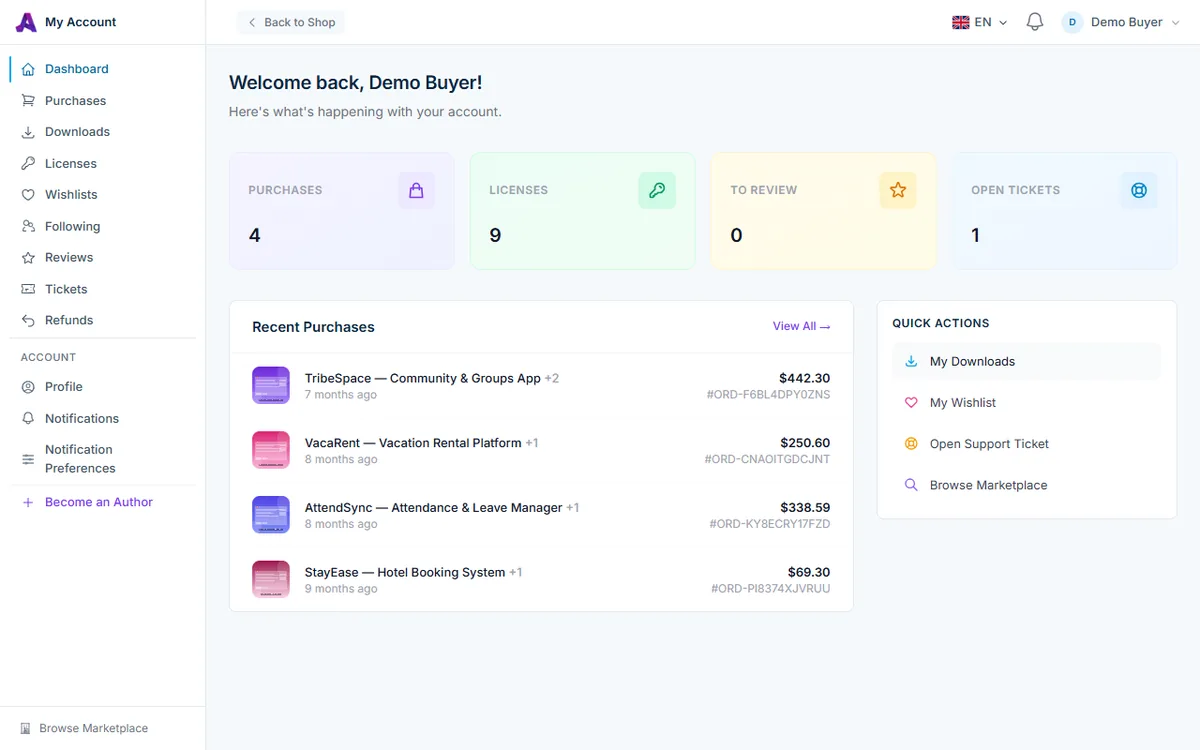
The To Review card on your account Dashboard shows how many products you have bought but not yet reviewed. You may also get an email inviting you to review a product a few days after you buy it.
Write your review
- Go to the product page while signed in and open the Reviews tab.
- Scroll to Write a Review below the existing reviews.
- Choose your Overall Rating from 1 to 5 stars.
- Enter a Review Title that sums up your experience.
- Write Your Review, at least 20 characters. Describe what you used the product for, how installation went, and how it performed.
- Optionally fill in Pros and Cons.
- Under Rate specific aspects, give stars for Design Quality, Code Quality, Features, Customer Support and Documentation. All five are required.
- Click Submit Review.
The author is notified when you submit a review.
Tips for a helpful review
- Mention the version you used and your setup, such as hosting type or PHP version.
- Be specific: "the installer failed on step 3 until I raised the PHP memory limit" helps far more than "didn't work".
- Keep support requests out of reviews. If something is broken, open a support ticket first so the author can fix it; you can update your review afterwards.
Moderation
Most reviews are published straight away. A review is held for a moderator before it appears if it:
- has an overall rating below 2 stars,
- contains a link,
- is written mostly in capital letters, or
- contains words on the marketplace's blocked list.
After you submit, a message tells you whether your review has been published or is pending moderation. Honest negative reviews are welcome; the extra check on very low ratings is there to catch spam and abuse.
See and edit your reviews
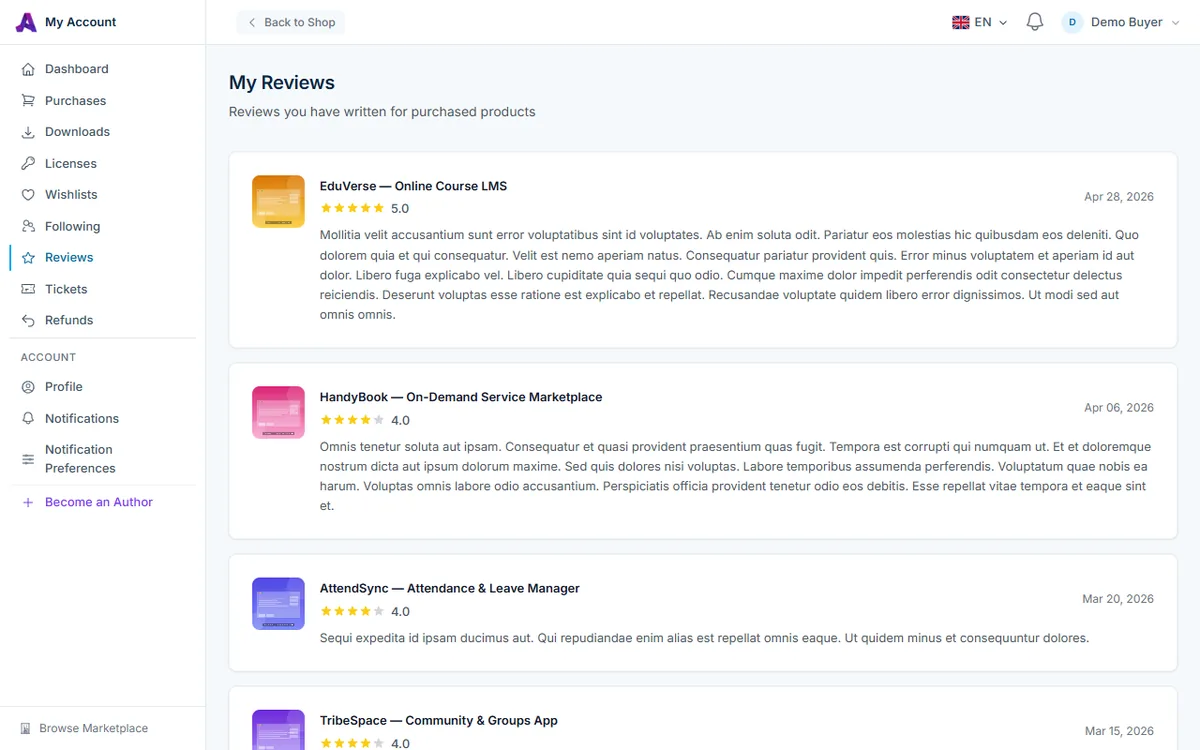
In your account, open Reviews in the left sidebar (/account/reviews). My Reviews lists every review you have written, with the product, star rating, date and text.
- Click Edit on the review. The button is shown for 30 days after you first posted the review.
- Change the rating, title, text, pros or cons on the Edit Review page.
- Click Update Review.
Edited reviews are checked again for links and flagged content. If an edit trips those checks, the review is hidden until a moderator approves it.
After your review is published
- It appears on the product's Reviews tab with a Verified Purchase label, and counts toward the product's star rating.
- Signed-in visitors can mark it Helpful or Not helpful.
- The author can post a public reply, which appears under your review.
Frequently asked questions
Can I delete my review?
Not from your account. If you need a review removed, contact AppTrovo support.
The Edit button is missing
Reviews can only be edited within 30 days of being posted. After that, the review stays as it is.
I bought the product but the form doesn't appear
Check that you are signed in with the account you bought it with, that the order is Completed under Purchases, and that the product is not in beta. If you already reviewed it, the tab shows a thank-you message instead of the form.
Related articles
Was this article helpful?