

Viewing Your Orders and Invoices
Every order you place, paid or free, is listed in your account under Purchases. From there you can open an order to see what you bought, what you paid, how long you have left to request a refund, and get a PDF invoice.
Find an order
In your account, open Purchases in the left sidebar (/account/purchases). The My Purchases page lists your orders, newest first, with these columns:
- Order Number — click it to open the order.
- Date — when the order was placed.
- Products — the first two products, with a note such as "1 more items" when there are more.
- License — the edition bought for each product, such as Commercial License. Free Community lines are shown in green.
- Total and Status.
- Refund Window — the days left to request a refund (for example, "12 days left"), Expired, or Refunded.
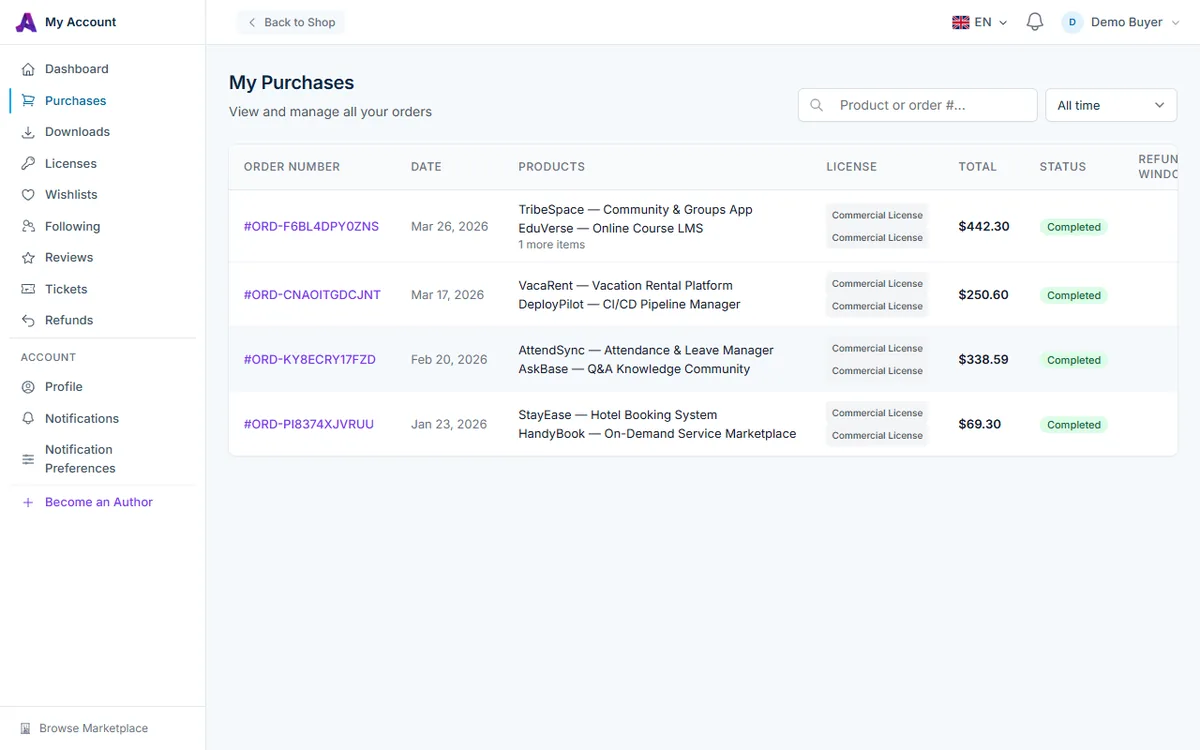
Search and filter
- Type a product name or an order number into the Product or order #... box and press Enter.
- Use the period menu to show All time, Last 30 days, Last 6 months, Last year, or a single calendar year in which you made purchases.
Orders are shown 15 per page; use the page links at the bottom to see older ones.
What order statuses mean
- Completed — payment succeeded and your licenses and downloads are active.
- Pending or Processing — the order has not finished yet.
- Failed — the payment did not go through, so nothing was delivered.
- Refunded or Partially Refunded — all or part of the order was refunded. Downloads stop for refunded items.
- Cancelled — the order was cancelled before it completed.
Open an order
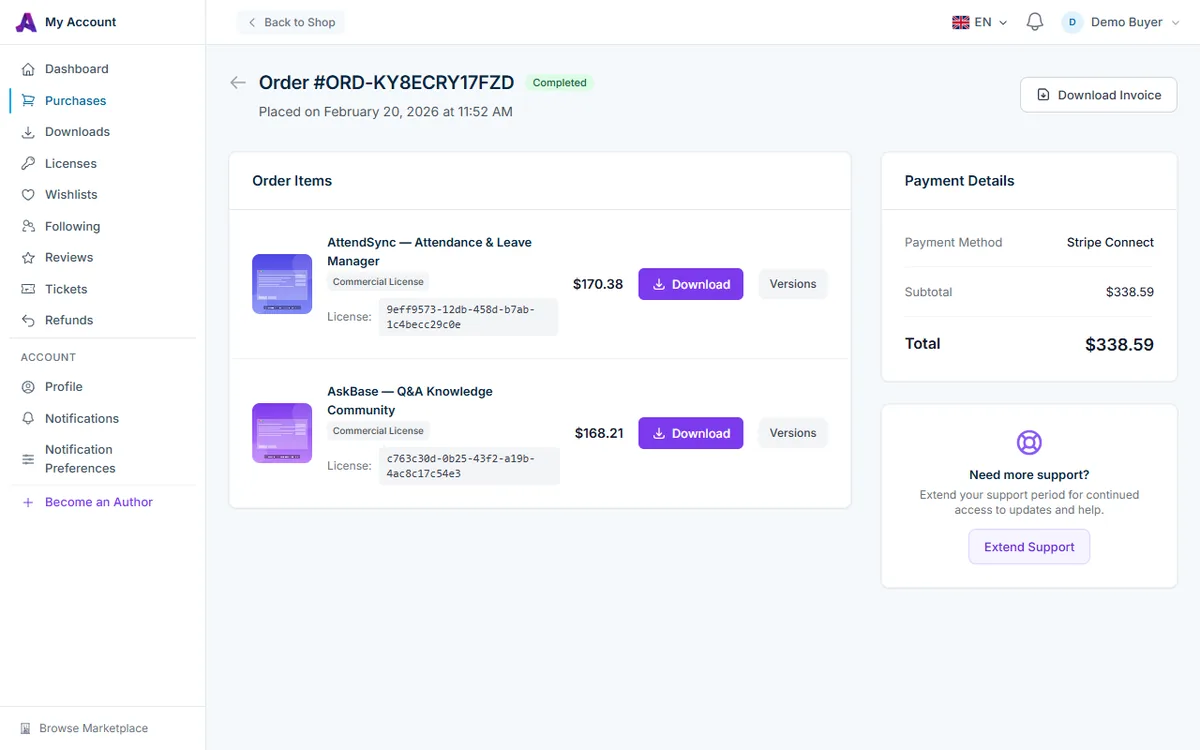
Click an order number to open its detail page. At the top you see the order number, its status, and the date and time it was placed.
- Refund banner — on paid orders, a banner shows the date your refund window closes and how many days remain. It turns yellow in the final week and grey once the window has passed. While the window is open, a Request Refund button appears in the top-right corner.
- Order Items — each product with its edition, a Bundle tag if it came from a bundle, and the price you paid. Download takes you to the product's files, and Versions lists every released version. See Downloading Your Purchased Files.
- Payment Details — the payment method, a transaction ID when one exists, and the Subtotal, any Bundle Savings, Discount and Tax, and the Total.
- Need more support? — on orders with paid products, Extend Support lets you buy more months of author support.
Download your invoice
AppTrovo creates a PDF invoice for each completed order. To download it:
- Open the order from Purchases.
- Click Download Invoice at the top right of the order page. The button appears on completed orders, and stays available after a full or partial refund.
- The PDF downloads. If no invoice exists yet for that order, one is generated on the spot.
The invoice shows:
- An invoice number, the issue date and the order number.
- A Bill To block with the name, email, address and country you entered at checkout, plus your Tax/VAT ID if you provided one.
- One line per product with its License Type and price.
- The subtotal, any bundle savings or discount, tax, handling or processing fees, and the total.
Only you can download the invoices for your own orders.
Frequently asked questions
Can I change the name or address on an invoice?
The invoice uses the billing details entered at checkout and cannot be edited from your account. Check those details carefully before you pay. Your next checkout starts with the details from your last order filled in, so you can correct them there for future orders.
Where is my license key?
Every product in an order has its own key. You can find it under Licenses or on the product's download page. See Finding Your License Key.
I don't see an order I placed.
Make sure you are signed in to the account you used at checkout and that the period filter is set to All time. A payment that failed may not create an order you can use. If the charge appears on your card statement, contact support.
Related articles
Was this article helpful?