

Answering Buyer Support Tickets
You are the first line of support for your products. When a buyer opens a ticket about one of them, it is assigned to you and appears in your Author Panel. This guide covers finding tickets, replying, closing them out and using canned responses to answer common questions quickly.
How buyer tickets reach you
Buyers create tickets from their account and can pick the product the ticket is about. When they choose one of your products, the ticket is assigned to you automatically. Buyers can only open a product ticket while their support period is active, and Community licenses include no author support. You are notified when a ticket is assigned to you and whenever the buyer replies. AppTrovo's support team can also see these tickets and step in if needed.
Tickets get a priority from their category: bug reports start as High, feature requests as Low, and billing questions as Medium. Only AppTrovo staff can set a ticket to Urgent.
Find your tickets
Open Tickets in the sidebar. The Support Tickets page lists tickets assigned to you together with any tickets you opened yourself with AppTrovo support.
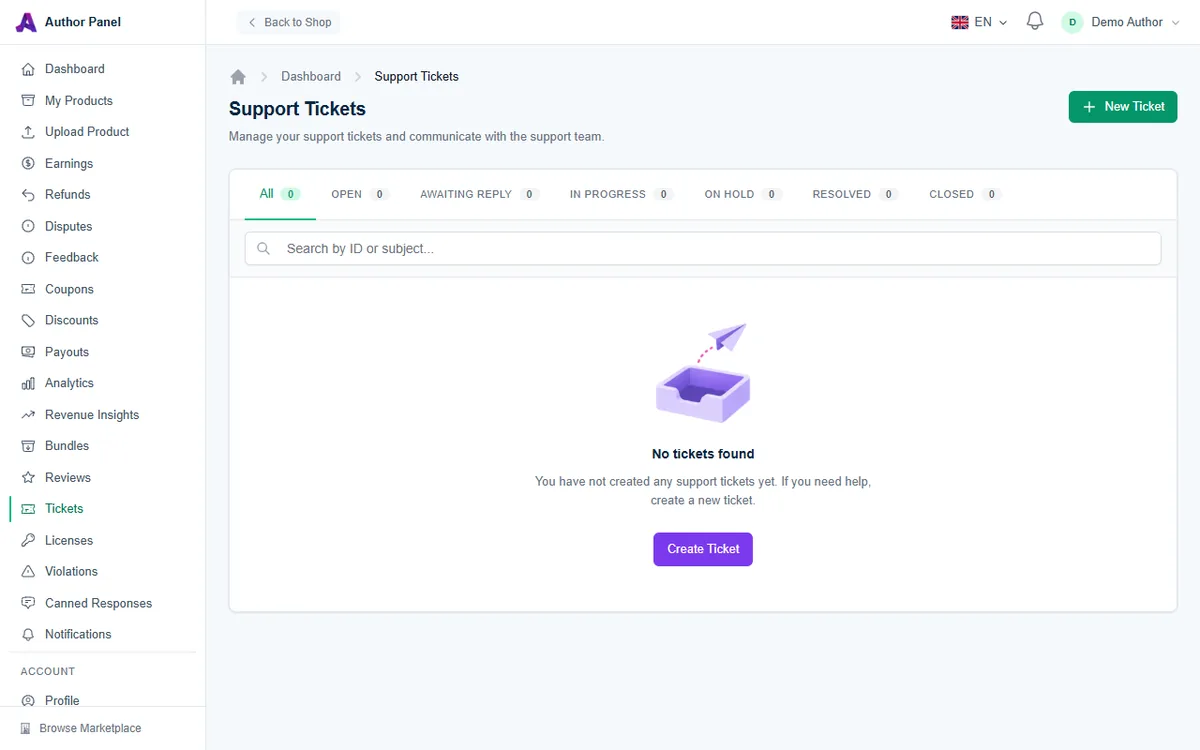
- Status tabs: All, Open, Awaiting Reply, In Progress, On Hold, Resolved and Closed, each with a count.
- Search by ticket number (TKT-…), ticket ID or subject.
- Columns: Ticket, Product, Category, Priority, Status and Last Updated.
Check the Open tab regularly so new questions don't wait.
The New Ticket button is for contacting AppTrovo support yourself, for example about a payout or a policy question. It is not for replying to a buyer.
Reply to a ticket
- Click a ticket to open it. The conversation is in the main column. The side panel shows Ticket Details, the Related Product and the SLA Status.
- Type your answer in the Reply box (at least 5 characters). To start from a saved answer, click it under Quick Responses in the side panel. It fills the reply box, and you can edit it before sending.
- Click Send Reply.
Your reply sets the ticket to Awaiting Reply. When the buyer answers, it goes back to Open.
Response time targets
Each ticket has a first-response and a resolution target based on its priority. SLA Status shows each target as due, met, or Breached if the deadline has passed.
- High: first response within 8 hours, resolution within 3 days.
- Medium: 24 hours and 5 days.
- Low: 48 hours and 7 days.
Your first reply on a ticket for your product is recorded as the first response.
Resolve, escalate or close
- Resolve marks the ticket as resolved when the buyer's problem is fixed.
- Escalate flags the ticket for AppTrovo's support team and raises its priority to High. Use it when you need the platform's help, for example with a payment, license or account issue you can't fix yourself.
- Close Ticket at the top of the page closes the conversation. A closed ticket shows This ticket is closed. and can be reopened with Reopen Ticket.
Save time with canned responses
Canned responses are reusable answers to questions you get often, such as installation steps, server requirements or how to activate a license.
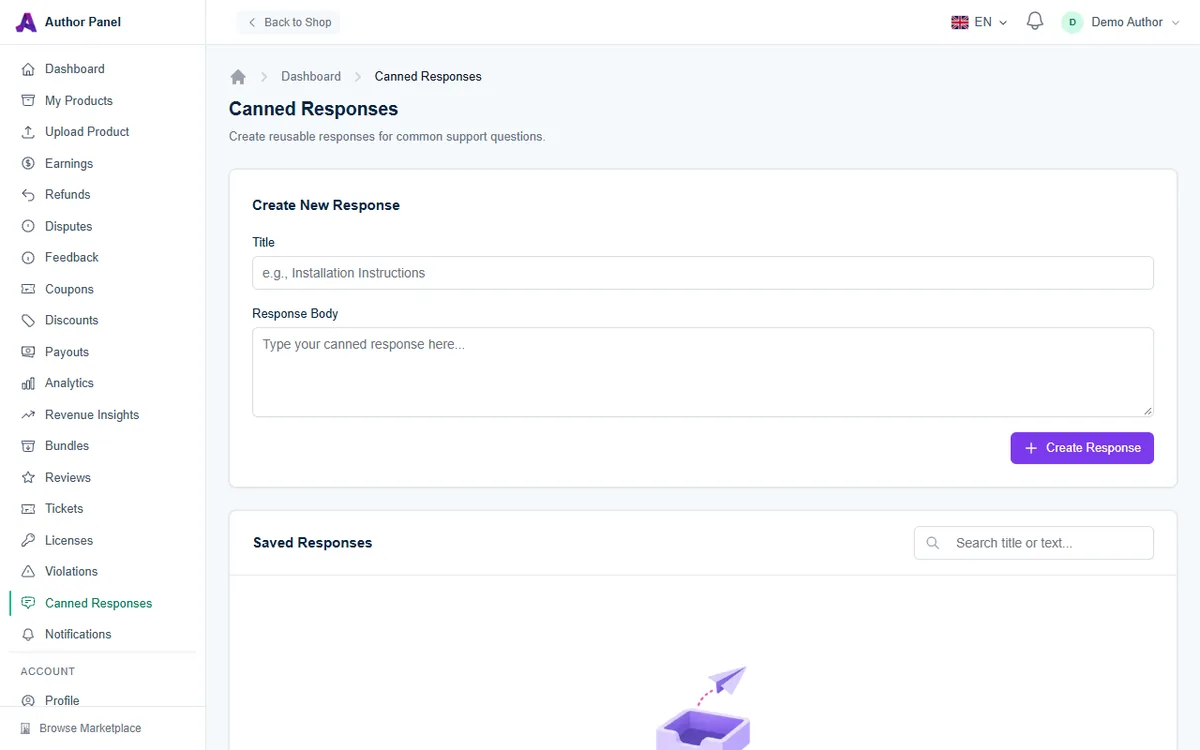
- Open Canned Responses in the sidebar, or click Manage next to Quick Responses on a ticket.
- Under Create New Response, enter a Title (for example "Installation Instructions") and the Response Body (up to 5,000 characters).
- Click Create Response.
Your saved responses are listed under Saved Responses, where you can search them by title or text, Edit or Delete them, and see how many times each has been used. Canned responses are private to your account. The Quick Responses panel on a ticket shows your first five.
Tips for good support
- Reply within the response target, even if it's only to say you are investigating.
- Ask for the exact error message, product version and server environment.
- Write canned responses in a friendly, general way, then personalize them before sending.
- If the same question keeps coming up, improve your documentation or release a fix. See Releasing a New Version.
Related articles
Was this article helpful?